Firmware Upgrade
OTA Upgrade
Tool
FeasyBlue App (Based on Android & iOS)
User Guide
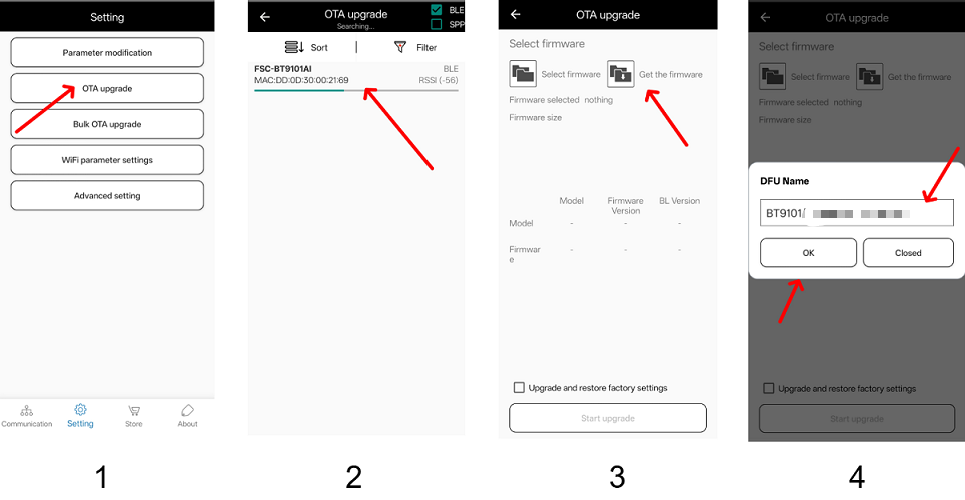
1.Run the FeasyBlue App, select Settings - OTA Upgrade to enter the OTA Upgrade function section. After entering, you will navigate to the device search interface to select the Bluetooth device to be upgraded.
2.Search for and select the Bluetooth device that needs upgrading. After selecting the device, you will enter the Load Firmware function interface to load the firmware upgrade file.
3.There are two ways to load the firmware upgrade file:
Select Firmware: Choose to load the firmware upgrade file stored in the mobile phone’s local storage (the firmware upgrade file is provided by Feasycom).
Get Firmware: Enter the DFU name to download and import the corresponding firmware upgrade file from the cloud server via the network (the DFU name is provided by Feasycom).
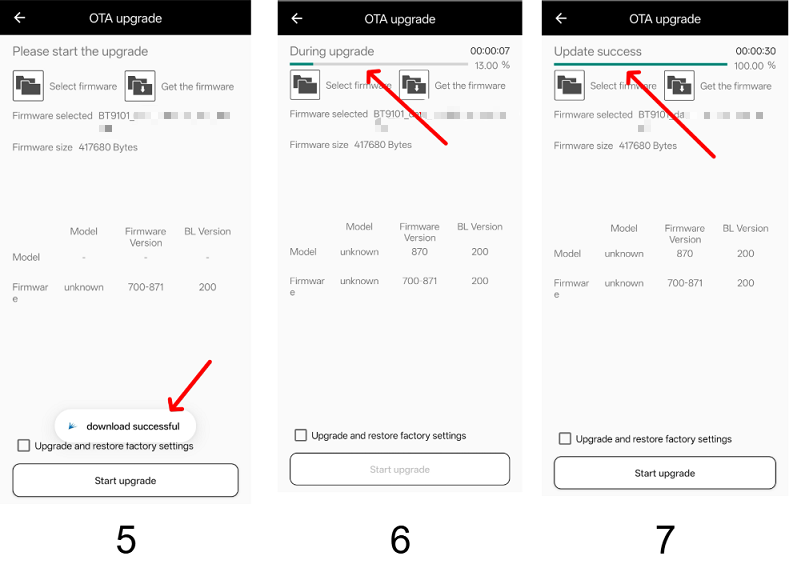
4.After the firmware file is loaded successfully, click the Start Upgrade button. The interface will display “Upgrading” and the upgrade progress, indicating that the upgrade mode is activated and the upgrade is in progress.
5.Wait for the upgrade progress bar to complete and the interface to display “Upgrade Completed”—the upgrade is then finished.
Warning :
When installing and running the FeasyBlue App, please allow the App to access the permissions for nearby devices, location information, and media and file access. Otherwise, you may fail to search for nearby Bluetooth devices and load the firmware upgrade file.
If you use the “Obtain Firmware” method (importing the firmware upgrade file by entering the DFU name), note that the mobile phone must be connected to the Internet, and ensure the DFU name is entered correctly (case-sensitive). Otherwise, an error of “network or file error” may occur.
Do not disconnect the power during the upgrade process.
Example
UART Upgrade
Tool
Feasycom UART Upgrde Tool : Based on Windows PC
User Guide
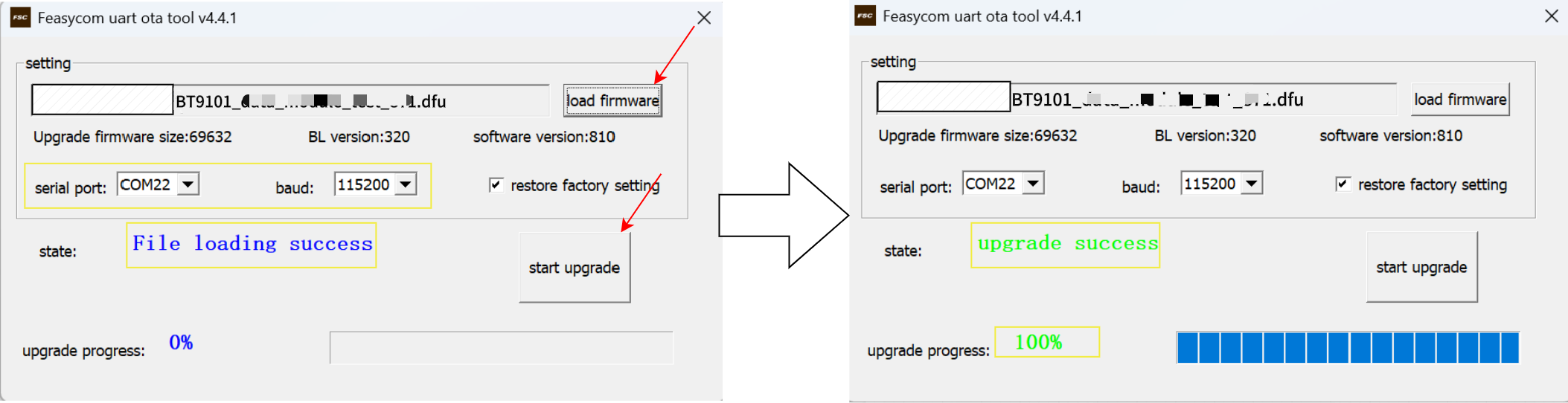
1.Run the Feasycom UART Upgrde Tool.
2.Enter the correct parameter configuration: serial port, baud .
3.Click load firmware and select the .dfu firmware upgade file stored locally on the PC.
4.Click start upgrade and will display connection Successful and simultaneously show the upgrade progress, indicating entry into upgrade mode.
5.When the progress bar displays 100% and the status shows upgrade success, the serial port upgrade is complete.
Example