Development Examples

[中文版]

Profile Initialization

Module Profile initialization, examples:

@startuml
hide footbox
skinparam sequenceMessageAlign center

box  #LightBlue
participant Host as host
participant Blueware as bt
end box

rnote over host, bt: Profile initialization

bt -> host: +DEVSTAT=0
bt -> host: +PWRSTAT=1
bt -> host: +SPPSTAT=1
bt -> host: +GATTSTAT=1
bt -> host: +VER=BT909C,V2.2.1,20230103
bt -> host: +PROFILE=1195
bt -> host: +A2DPMUTED=0
bt -> host: +A2DPSTAT=1
bt -> host: +AVRCPSTAT=1
bt -> host: +HFPSTAT=1
bt -> host: +PBSTAT=1
bt -> host: +DEVSTAT=1
bt -> host: +DEVSTAT=7

@enduml

Parameter Modification

Modify Bluetooth Name

Examples: Modify Bluetooth name to CARKIT(without address code suffix) and verify it.

@startuml
hide footbox
skinparam sequenceMessageAlign center

box  #LightBlue
participant Host as host
participant Blueware as bt
end box

host -> bt: AT+NAME
bt -> host: +NAME=FSC-BT909C-0BB5
host -> bt: AT+NAME=CARKIT,0
bt -> host: OK
host -> bt: AT+NAME
bt -> host: +NAME=CARKIT
@enduml

Code Examples

Before the MCU modifies any parameters, it is recommended to first query, then modify, and finally verify.

For the MCU to modify the device name to CARKIT, the reference code example is as follows:

 1void change_name(void)
 2{
 3    uart_send("AT+NAME\r\n");
 4    if(uart_read("+NAME",name_buf))
 5    {
 6        if(memcmp(name_buf,"CARKIT",6))
 7        {
 8            uart_send("AT+NAME=CARKIT,0\r\n");      //defalut disable MAC address suffix
 9            uart_send("AT+NAME\r\n"); // read bt name
10            if(uart_read("+NAME",name_buf))
11            {
12                if(memcmp(name_buf,"CARKIT",6))
13                {
14                    //change name fail
15                }
16                else
17                {
18                    //change name success
19                }
20            }
21        }
22    }
23}

Throughput Mode Application

What is Throughput Mode?

There are two data transmission modes for FSC-BT909C: Throughput Mode and Command Mode. Please refer to the FSC-BT909C General Data AT Command Set and use the AT command AT+TPMODE to query and switch the working mode.

The differences between the two work modes are as follows:

  • Throughput Mode :

Bluetooth Not Connected : Data received via UART is parsed as AT commands.

Bluetooth Connected : All data received via UART is sent as-is to the remote Bluetooth device. It does not contain any data headers or framing and does not require AT commands to send data.

  • Command Mode :

Bluetooth Not Connected : Data received via UART is parsed as AT commands.

Bluetooth Connected : Data received via UART is still parsed as AT commands. It will contain specific response indication headers and framing. Data must be sent to the remote device using AT commands, such as AT+LESEND or AT+SPPSEND .

The timing sequence for the module to enter the throughput mode is as follows:
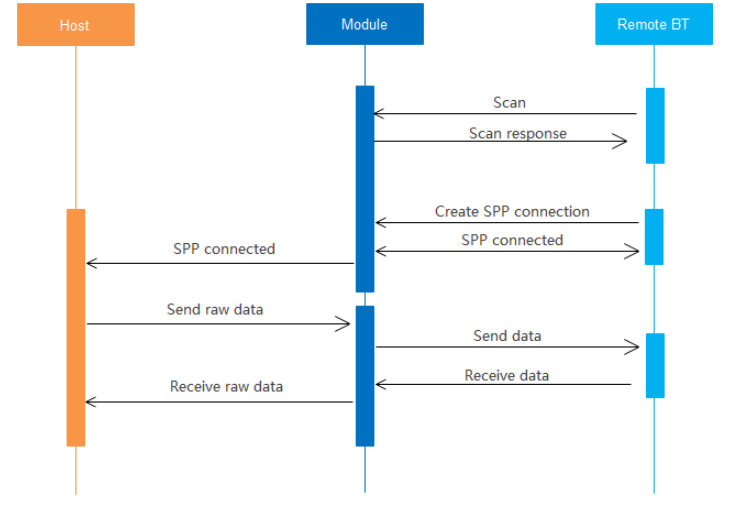
../_images/bt909c-datatp.png

SPP Master and Slave Application

FSC-BT909C Universal Bluetooth dual-mode data transmission Application Firmware supports both SPP Master and SPP Slave functions simultaneously. When AT commands for the SPP Master function are used, the module acts as the Master role, otherwise, it acts as the Slave role.

Key AT Commands List for SPP Master Mode Function:

AT Commands

Description

AT+SCAN

Search for nearby Bluetooth devices

AT+SPPCONN

Establish SPP connection

AT+SPPSTAT

Read SPP status

AT+SPPDISC

Disconnect the SPP connection

AT+SPPSEND

Send data via SPP

Example of SPP master interaction (AT command mode):
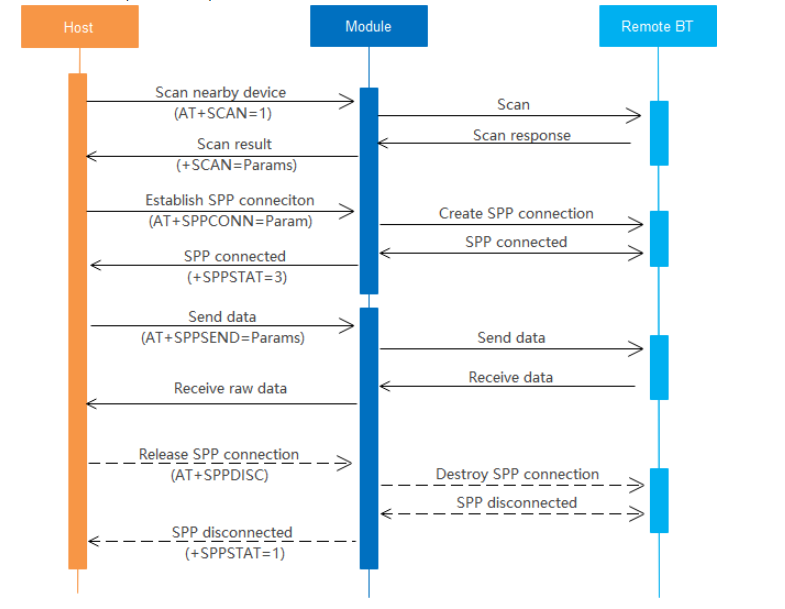
../_images/bt909c-spp-master.png

Auido Sink Mode Application

Note

If the factory firmware of the module is transceiver-in-one program, the default +PROFILE=339. You need to send the AT command AT+PROFILE=1195 to configure it to audio sink mode (enabling SPP, GATT Server, HFP Sink, A2DP Sink, AVRCP-Controller, and PBAP).

@startuml
hide footbox
skinparam sequenceMessageAlign center

box  #LightBlue
participant Host as host
participant Blueware as bt
end box

rnote over host, bt: Profile Initialization

bt -> host: +PROFILE=1195
bt -> host: ...
bt -> host: +DEVSTAT=7

rnote over host, bt: Mobile phone scan and connect to Module
bt -> host: +A2DPSTAT=2
bt -> host: +A2DPSTAT=3 (A2DP Connected)
bt -> host: +A2DPDEV=8C861E94A09E,Navy
bt -> host: +AVRCPSTAT=3 (AVRCP Connected)
bt -> host: +HFPSTAT=3 (HFP Connected)
bt -> host: +HFPDEV=8C861E94A09E,Navy
bt -> host: +HFPSIG=3
bt -> host: +HFPBATT=4
bt -> host: +HFPROAM=0
bt -> host: +HFPNUM=8618620277271
bt -> host: +HFPMANU=AppleInc.

rnote over host, bt: take call and Hang up
host -> bt: +HFPDIAL=10086 ( take call "10086")
bt -> host: OK
bt -> host: +HFPSTAT=4,10086
bt -> host: +HFPAUDIO=1 (Audio link established)
bt -> host: +HFPSTAT=6,10086 (call active)
host -> bt: AT+HFPCHUP(Hang up the call)
bt -> host: +HFPSTAT=3
bt -> host: +HFPAUDIO=0 (Audio link disconnected)

rnote over host, bt: Play music and pause
host -> bt: AT+PLAY(Play music)
bt -> host: +A2DPSTAT=5
bt -> host: +PLAYSTAT=1
bt -> host: +TRACKINFO=song,artist,album
bt -> host: +TRACKSTAT=1,1,240
bt -> host: +TRACKSTAT=1,2,240
host -> bt: AT+PAUSE(Pause music)
bt -> host: +PLAYSTAT=2
bt -> host: +A2DPSTAT=4

@enduml

Auido Source Mode Application

Application Examples

Note

  • It is necessary to configure the module to A2DP Source and HFP-AP.

  • After connecting to the remote device, the module needs to select the audio route: send audio (AT+AUDROUTE=1) and make calls (AT+AUDROUTE=2).

@startuml
hide footbox
skinparam sequenceMessageAlign center

box  #LightBlue
participant Host as host
participant Blueware as bt
end box

rnote over host, bt: Profile Initialization

bt -> host: +PROFILE=339
bt -> host: ...
bt -> host: +DEVSTAT=7

rnote over host, bt: Search and connect
host -> bt: AT+SCAN=1
bt -> host: +SCAN=1,-87,0,DC0D30001E49,FSC-BT1036-1E49,5A020C
bt -> host: +SCAN=2,-78,0,7C9A1DA36B41,AirPods,240404
bt -> host: +SCAN=E

host -> bt: AT+A2DPCONN=7C9A1DA36B41
bt -> host: +A2DPSTAT=2
bt -> host: +A2DPSTAT=3 (A2DP connected)
bt -> host: +A2DPDEV=7C9A1DA36B41,AirPods
bt -> host: +HFPSTAT=2
bt -> host: +HFPSTAT=3 (HFP connected)
bt -> host: +HFPDEV=7C9A1DA36B41,AirPods
bt -> host: +AVRCPSTAT=3 (AVRCP connected)


rnote over host, bt: Activate the audio transmission mode
host -> bt: AT+AUDROUTE=1
bt -> host: +PLAYSTAT=1
bt -> host: +A2DPSTAT=5
bt -> host: +AUDMODE=1

rnote over host, bt: Deactivate the audio transmission mode
host -> bt: AT+AUDROUTE=0
bt -> host: +PLAYSTAT=2
bt -> host: +A2DPSTAT=4
bt -> host: +AUDMODE=0

rnote over host, bt: Activate the call and intercom modes
host -> bt: AT+AUDROUTE=2
bt -> host: +HFPAUDIO=1
bt -> host: +HFPSTAT=4
bt -> host: +AUDMODE=2
bt -> host: +HFPSTAT=6

rnote over host, bt: Deactivate the call and intercom modes
host -> bt: AT+AUDROUTE=0
bt -> host: +HFPAUDIO=0
bt -> host: +HFPSTAT=3
bt -> host: +AUDMODE=0

@enduml

Code Examples

Connect to AirPods and start audio transmission

 1#define PROFILE_HFP_HF              (uint16)(BIT3)
 2#define PROFILE_HFP_AG              (uint16)(BIT4)
 3#define PROFILE_A2DP_SINK           (uint16)(BIT5)
 4#define PROFILE_A2DP_SOURCE         (uint16)(BIT6)
 5
 6void bt_connect(void)
 7{
 8    //enable hfp source,a2dp source,avrcp tg,spp,gatt
 9    uart_send("AT+PROFILE=339\r\n"); //if profile changes,module will auto reboot,
10    wait_ms(500);
11    uart_send("AT+PROFILE\r\n");
12    uint32 profiles = uart_read("+PROFILE",profiles);
13    if(profiles & (PROFILE_A2DP_SOURCE|PROFILE_HFP_AG))
14    {
15        uint8 addr[6];
16        uint8 buf[30]={0};
17        uint8 a2dp_state=0
18        uart_send("AT+SCAN=1\r\n");
19        uart_read_scan_addr("+SCAN",addr);
20        sprintf(buf,"AT+A2DPCONN=%s\r\n",addr);
21        uart_send(buf); //send a2dp connect
22
23        uart_read("+A2DPSTAT",a2dp_state);
24        if(a2dp_state == 3) //a2dp connected
25        {
26            uart_send("AT+AUDROUTE=1"); // start a2dp audio
27        }
28        uart_read("+A2DPSTAT",a2dp_state);
29        if(a2dp_state == 5)
30        {
31            //a2dp streaming
32        }
33    }
34    else
35    {/*not support master*/}
36}

PhoneBook Download

Note

During PBAP(Phone Book Access Profile) download, some firmware versions may not support automatic PBAP connection. It is necessary to first send the AT command AT+PBCONN to establish the connection before performing the PBAP download.

Application Examples

@startuml
hide footbox
skinparam sequenceMessageAlign center

box  #LightBlue
participant Host as host
participant Blueware as bt
end box

rnote over host, bt: HFP connected

bt -> host: ...
bt -> host: +HFPSTAT=3

rnote over host, bt: PBAP connect
host -> bt: AT+PBCONN=5C873026D673
bt -> host: +PBSTAT=2
bt -> host: OK
bt -> host: +PBSTAT=3 (PBAP connected)

rnote over host, bt: Download all phonebook
host -> bt: AT+PBDOWN=1
bt -> host: +PBSTAT=2
bt -> host: +PBSTAT=3 (PBAP connected)
bt -> host: +PBSTAT=4
bt -> host: +PBDATA=1,Local number,+8618620277272
bt -> host: +PBDATA=1,Tom,0571-85592192
bt -> host: ...
bt -> host: +PBDATA=1,Jerry,18909731215
bt -> host: +PBDATA=E (Download complete)
bt -> host: +PBSTAT=3

rnote over host, bt:
bt <--> host: (if item's photo flag set,photo image number.jpg should be placed in spcecify folder)
bt -> host: +PBDATA=1,Local number,+8618620277272,1
bt -> host: +PBDATA=1,Tom,0571-85592192
bt -> host: +PBDATA=1,Jerry,18909731215,1
bt -> host: +PBDATA=E
bt -> host: +PBSTAT=3

rnote over host, bt: Download 50 call records
host -> bt: AT+PBWODN=5,50
bt -> host: +PBDATA=3,China Mobile,+10086,20200213T114247
bt -> host: ...
bt -> host: +PBDATA=2,Andy,85592192,20200212T104202
bt -> host: +PBDATA=E
bt -> host: +PBSTAT=3

@enduml