Firmware upgrade
OTA upgrade
App Download
FeasyBlue App (Base on Andriod or iOS)
User Guide
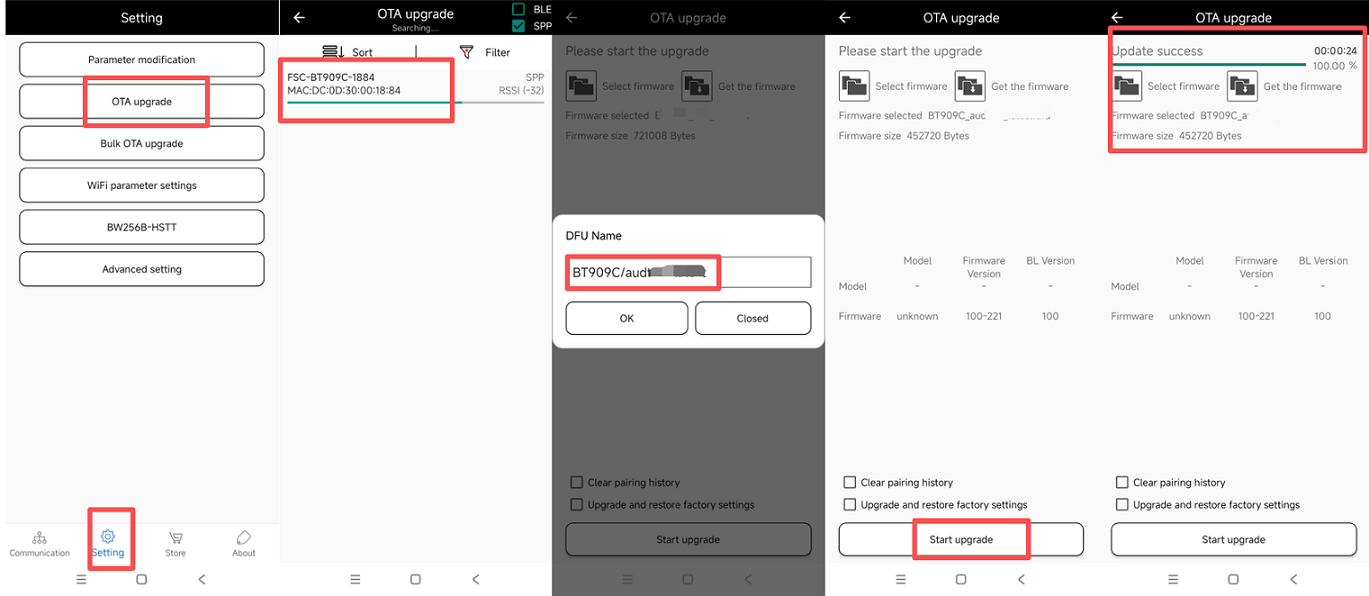
1.Run the FeasyBlue App, select Setting - OTA Upgrade to enter the OTA Upgrade function page. After entering, it will redirect to the device search page where you can select the Bluetooth device to be upgraded.
2.Scan and select the Bluetooth devices that need to be upgraded. After selecting the device, you will enter the Firmware Loading interface to load the firmware update file.
3.There are two ways to load the firmware update file:
Select firmware: Choose to load the firmware update file stored locally on the phone (the firmware update file is provided by Feasycom).
Get the firmware: By entering the DFU name, the corresponding firmware update file can be downloaded and imported from the Feasycom cloud server via the network (the DFU name is provided by Feasycom).
4.After successfully loading the firmware update file, click the Start Upgrade button. The message “Upgrading” and the upgrade progress will be displayed, indicating that the upgrade mode has been successfully entered and the upgrade is in progress.
5.Wait for the upgrade progress bar to complete and display “Upgrade Completed”, then the upgrade is considered complete.
Warning:
When installing and running the FeasyBlue App, please allow the App to access nearby devices, location information, and media and file access permissions. Otherwise, it will result in the inability to search for nearby Bluetooth devices and load firmware update files.
If you choose to import the firmware update file by obtaining the firmware through the DFU name, please note that your phone needs to be connected to the Internet and ensure that the DFU name is entered correctly (case sensitive), otherwise an error message of network or file error will be displayed.
During the upgrade process, do not disconnect the power supply.
OTA Upgrade Example
Note: The following example is based on operations on the Android platform. The involved device name, parameters, and firmware DFU name are for demonstration purposes only. Please refer to the actual information during project implementation.