Firmware Upgrade
OTA Upgrade
Tools
FeasyBlue App : Used to configure the module to enter OAD update mode.
SensorTag App: Used to load the firmware file and perform the update.
Android: On Google Play, search for “Simplelink SensorTag”, then download and install it.
iOS: On the App Store, search for the app, then download and install it.
OTA Upgrade Guide
Enter OAD Firmware Update Mode
Use the FeasyBlue App to put the FSC-BT618x module into OAD update mode. Follow these steps:
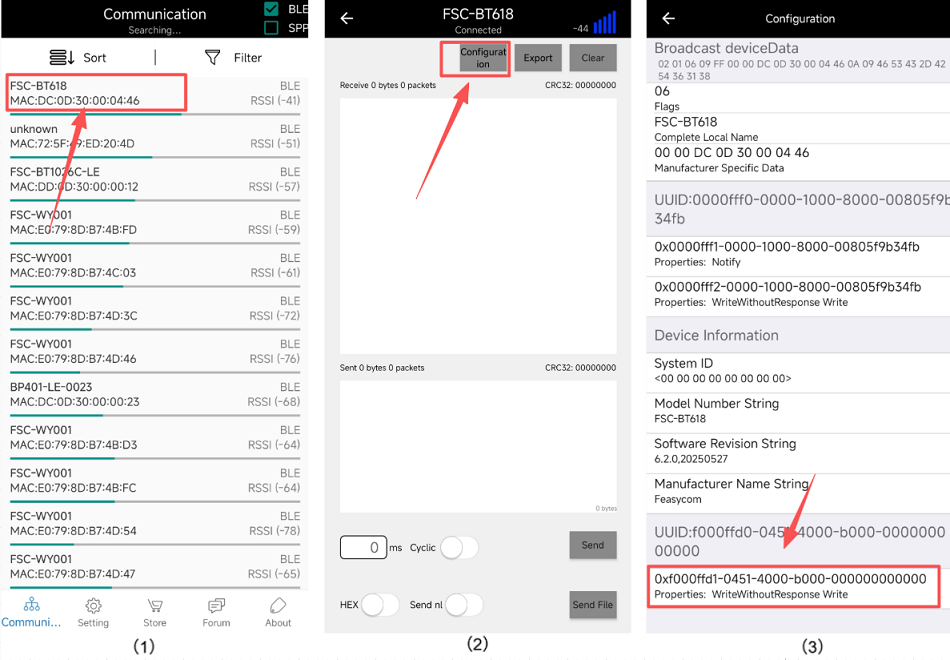
1.Open the FeasBlue App, check BLE mode, search for and connect to the Bluetooth device you want to upgrade (e.g., FSC-BT618). Once connected via BLE, you’ll enter the device’s communication page.
2.On the connected device’s communication page, tap Configuration to go to the Configuration page.
3.On the Configuration page, find the UUID service starting with 0xf000ffd1-, tap it, and you’ll enter the UUID’s Feature information page.
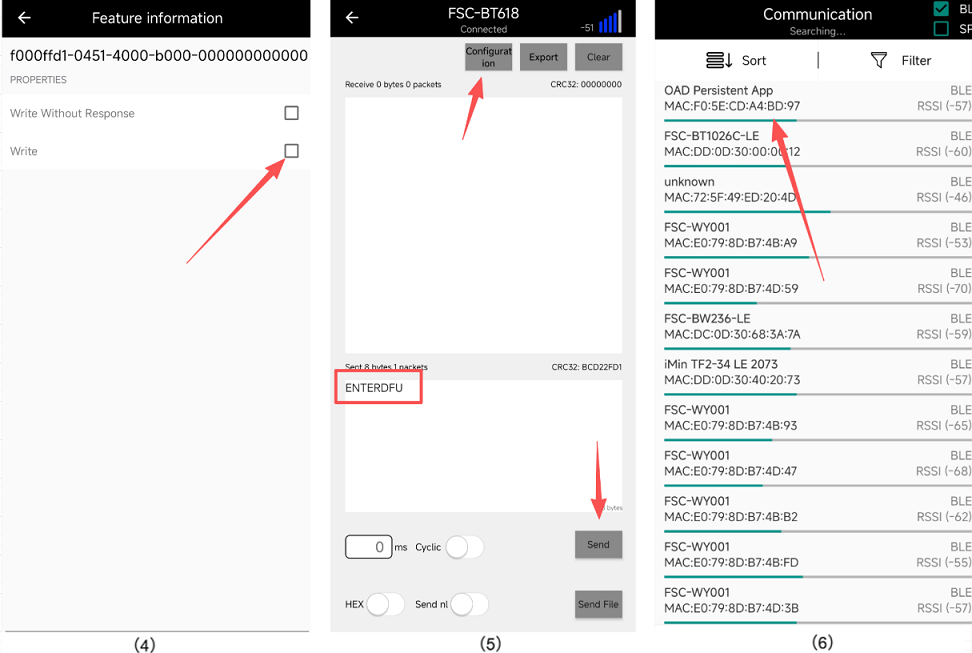
4.On the UUID’s Feature information page, check the Write option, then go back to the previous page (the connected device’s communication page).
5.On the connected device’s communication page, send the command ENTERDFU to the Bluetooth module. After it sends successfully, the device will enter OAD update mode, and the App will disconnect from the module.
6.Go back to FeasyBlue’s home page. You’ll see a Bluetooth device named OAD Persistent App , that means the module is in OAD update mode.
Load the Firmware File and Update
Here’s how to do it on iOS:
Once the device is in OAD update mode, use the SensorTag App to do an over-the-air (OTA) firmware update.
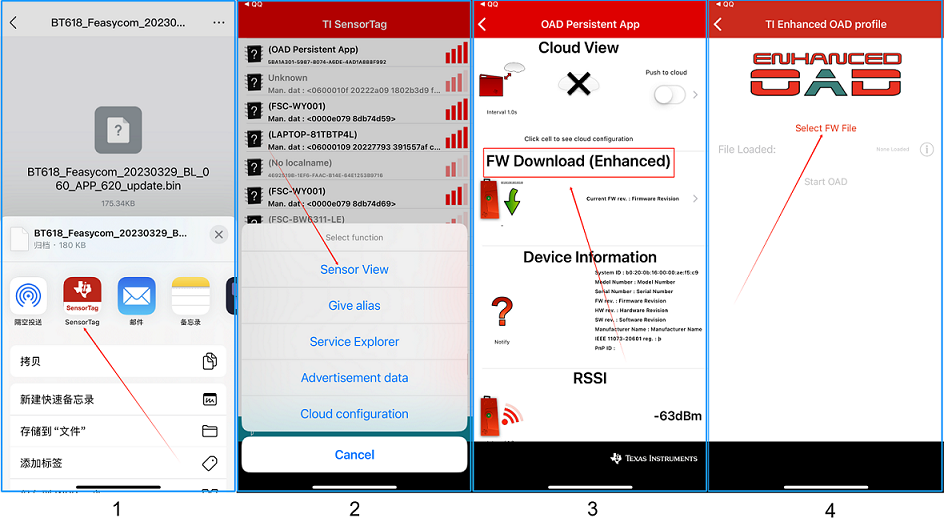
1.Save the firmware file to your phone’s local storage, then open the file with the SensorTag App. You’ll be taken to the App’s home page.
2.On the SensorTag App home page, search for the OAD Bluetooth device you want to upgrade, and tap Sensor View to connect to it via Bluetooth.
3.After connecting successfully, you’ll automatically enter the OAD Persistent App page. Tap the FW Download (Enhanced) section to go to the Enhanced OAD profile page.
4.On the Enhanced OAD profile page, tap Select FW File to open the Image Files page.
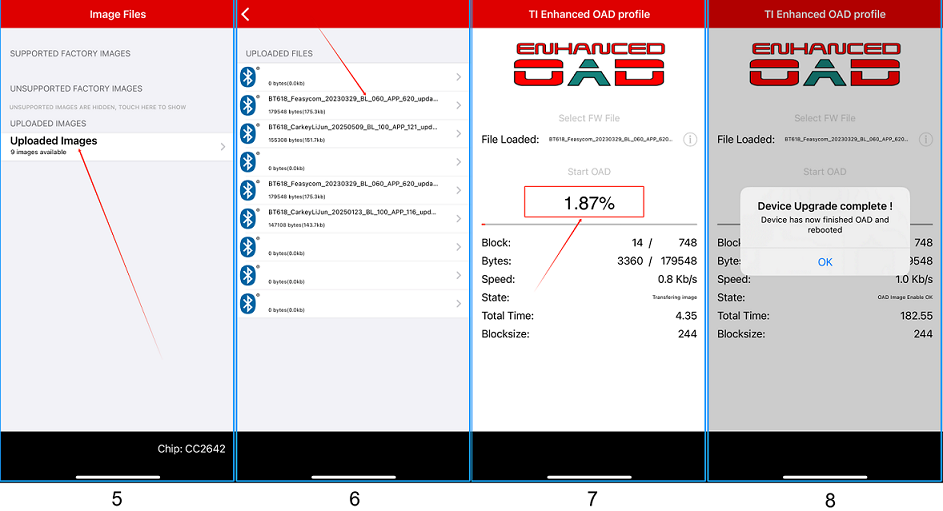
5.On the Image Files page, tap Uploaded lmages to load the firmware update file from your phone’s local storage.
6.On the Upload files page, select the target firmware file, then tap Program , you’ll go back to the Enhanced OAD profile page, and the update will start.
7.A progress bar will appear when the update begins.
8.When you see the message “Device Upgrade complete”, the update is done. Tap “OK” to close the App.