FeasyBeacon User Guide
Version |
Date |
Author |
|---|---|---|
2.0 |
2025-09-09 |
Oran |
Beacon
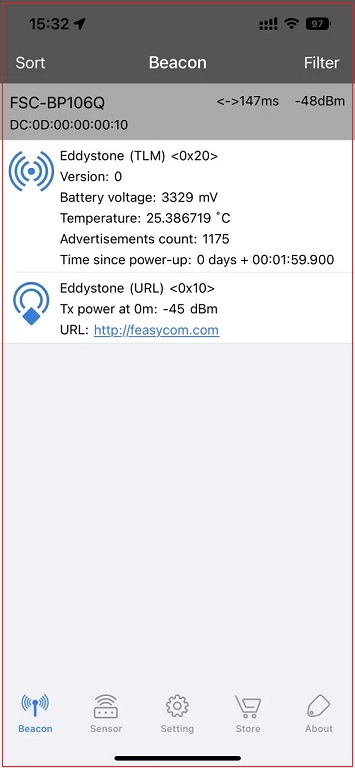
This interface is used to classify and display standard Beacon information broadcast by around/nearby Beacon devices.
The user clicks the “Sort” button in the upper left corner, and the devices on this interface are displayed in order of RSSI signal strength from strong to low
The user clicks the “Filter” button in the upper right corner - enters the filter interface - sets the filter conditions - turns on the switch, and the Beacon interface will filter the device according to the filter element.
Note: The sort button and filter button of any interface of Feasybeacon can filter devices using the above steps
Taking BP106Q as an example, if filtered, as shown in the figure below:
The name of the device:FSC_BP106Q
MAC address:DC:0D:00:00:00:10
RSSI value:-48dB
Eddystone Standard Radio and URL broadcast
Sensor
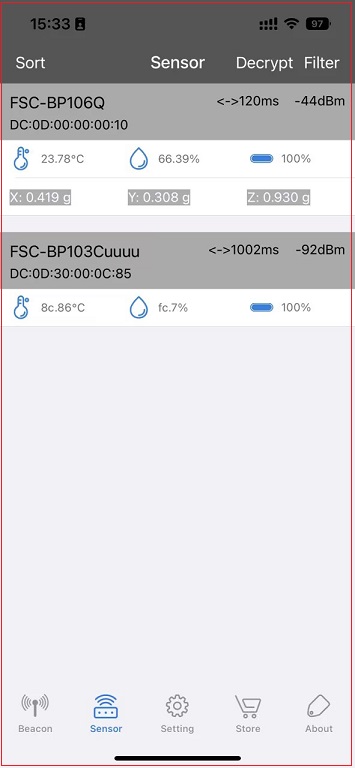
Currently, the temperature, humidity, battery, and G-Sensor sensor data can be displayed by device, and the encrypted custom sensor data can be parsed by key.
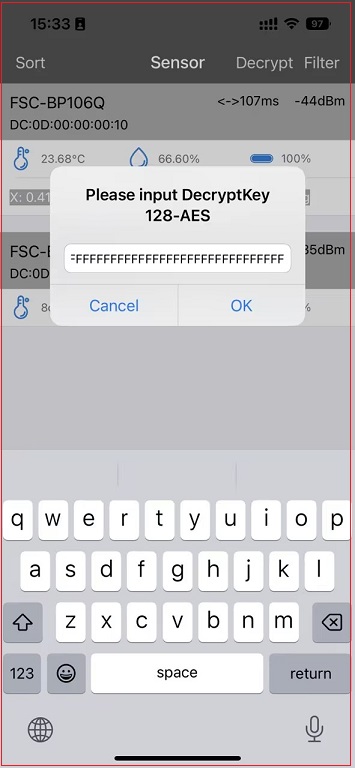
The user clicks the “key” button in the upper right corner - enters the 128-bit key - and clicks OK to parse the encrypted sensor data
Settings
This interface displays the basic information broadcast by various Beacon devices around/nearby, and you can click on the desired device to configure it.
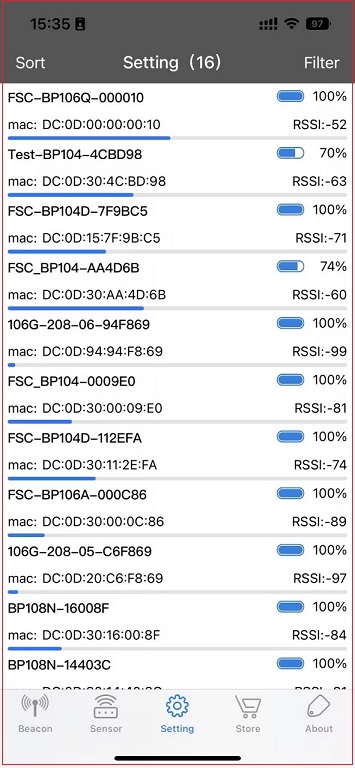
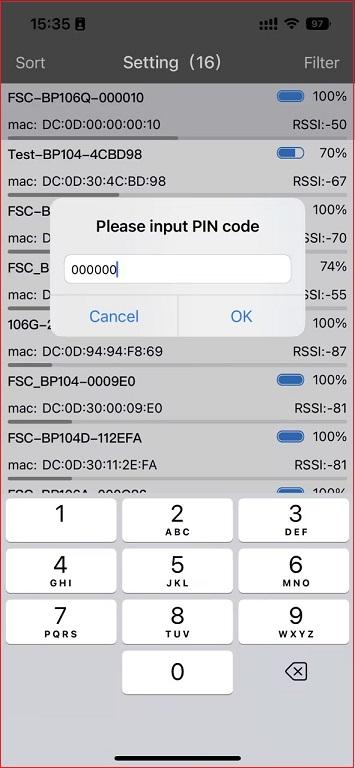
Click the device to be configured, take the FSC_BP106Q as an example, and enter the 000000 password.
Note: The initial password of all Beacon devices is 000000, if you forget the password you have set, please enter 000000 to enter the configuration interface within 60 seconds after powering on.
Taking FSC-BP106Q as an example, you can configure the following parameters as needed:

“Version” :Refers to the current firmware version of the module, and the version number will change after the firmware upgrade is completed.
“Interval” :Refers to the time between two adjacent broadcasts.
“Gsensor(ms)” :Refers to the gravity sensor, including the sensing time and sensing interval, can sense the magnitude of acceleration, and can only be configured by modules with this function.
“Key(ms)” :Refers to the key broadcast, including the key duration and key interval
“TxPower(db)” :Refers to the transmit power, the range is determined by the chip scheme of the beacon, which will affect the broadcast distance.
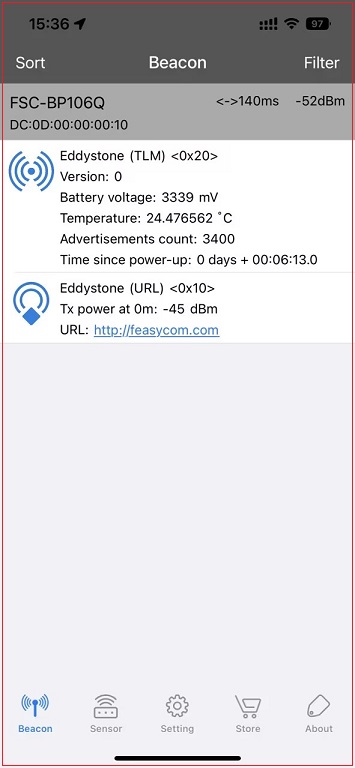
“TLM” :A default broadcast that cannot be configured by the user. As shown in the figure below, when TLM is turned on, the battery level, broadcast count, and running time of the broadcast will be displayed. When TLM is disabled, the broadcast battery level, broadcast count, and running time are not displayed.
Note:
Broadcast interval time range: 100~10000ms
G-Sensor sensing time range:100~65535,sensing interval range:100~10000
Key broadcast time range:100~65535,Key interval range:100~10000
The TxPower power range is determined by the chip scheme of the beacon and affects the broadcast distance.
If the broadcast interval time, G-Sensor sensing time, and key time are 0, the corresponding function is disabled, and all three are not allowed to be 0 at the same time.
Different broadcast format settings
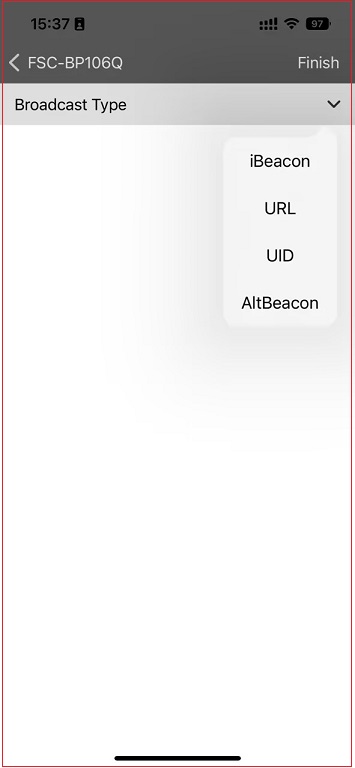
iBeacon configuration
Enter the APP setting interface - click the “ADD Beacon+” button - drop down to select Ibeacon - click “Finish” - click “Save” to complete the addition.
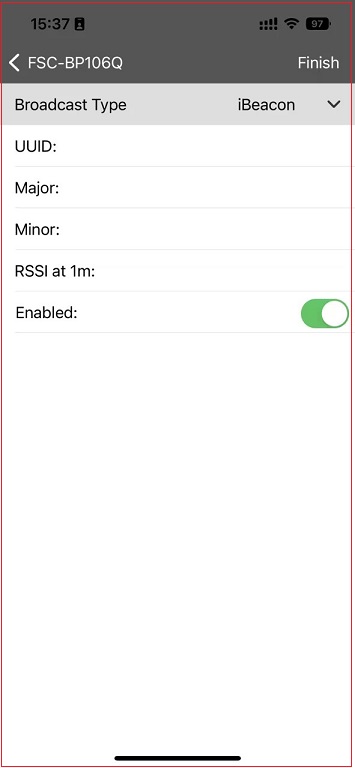
Note:
UUID:Refers to a unique device identifier consisting of a 32-bit hexadecimal string (0 to 9, A to F)
Major:Refers to the main value of Ibeacon devices, which is used to distinguish a group of associated beacon devices, range: 0~65535
Minor:Refers to the secondary value of the Ibeacon device, which is used to determine a device, range: 0~65535
RSSI at 1m:Refers to the secondary value of the Ibeacon device, which is used to determine a device, range: 0~65535
Enabled:The default is on, if this button is turned off, the Beacon interface will not display this broadcast
Click Done and Save
URL configuration
Enter the APP setting interface - click the “ADD Beacon+” button - pull down to select the URL - click “Finish” - click “Save” to complete the addition.
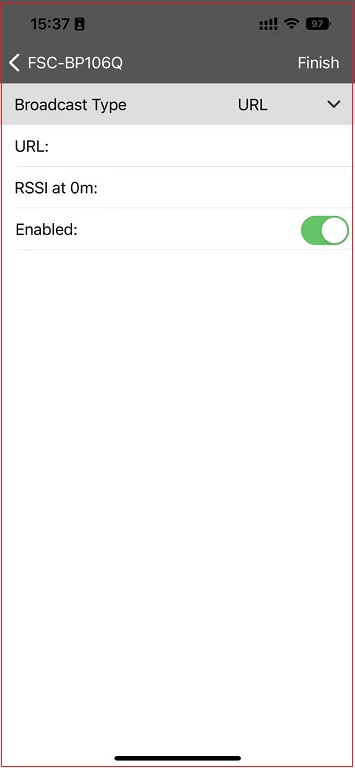
Note:
URL:Refers to a unified resource locator, consisting of a prefix + suffix, and requires no more than 17 bytes
The eligible prefixes are as follows: ① http://www.
② https://www. ③ http:// ④ https://
RSSI at 0m:Indicates the signal strength at a distance of 0 meters between the device and the receiver.
Enabled:The default is on, if this button is turned off, the Beacon interface will not display this broadcast。
The URL broadcast prefix is not counted in the length range; The suffix is only counted as 1 byte in length.
Click Done and Save
UID configuration
Enter the APP settings interface - click the “ADD Beacon+” button - pull down to select UID - click “Finish” - click “Save” to complete the addition.
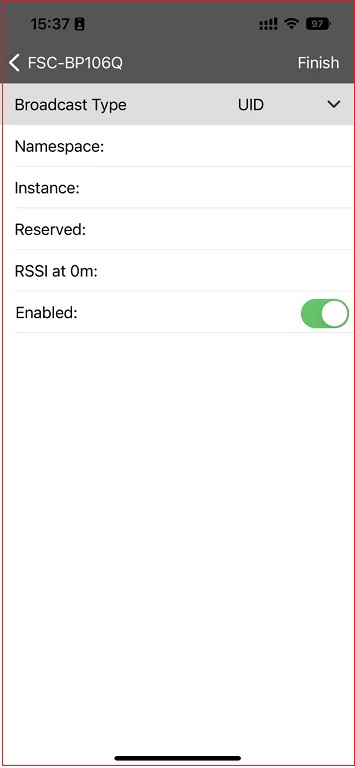
Note:
Namespace: Refers to a namespace consists of a 20 bit hexadecimal string(0 to 9, A to F)
Instance: Refers to an example consists of a 12-bit hexadecimal string (0 to 9, A to F)
Reserved: Reserved consists of a 4-digit hexadecimal string (0 to 9, A to F)
RSSI at 0m: Refers to the signal strength when the distance between the device and the receiver is 0 meters, range -127 ~ 128
Enabled: The default is on, if this button is turned off, the Beacon interface will not display this broadcast.
Click Done and Save
Altbican configuration
Enter the APP setting interface - click the “ADD Beacon+” button - pull down to select ALtBeacon - click “Finish” - click “Save” to complete the addition.
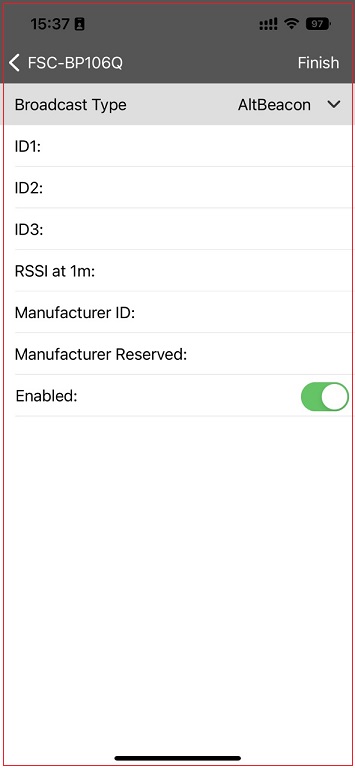
Note:
D1: Refers to the vendor ID of a beacon, which consists of a 32-bit hexadecimal string (0 to 9, A to F)
ID2: Refers to the primary area identifier of the beacon, consisting of a 4-digit hexadecimal string(0 to 9, A to F)
ID3: Refers to the beacon’s secondary region identifier, consisting of a 4-digit hexadecimal string(0 to 9, A to F)
RSSI at 1m: Refers to the signal strength value of Rssi, the closer this value is to 0, the stronger the signal, range -128 ~ 127
Manufacturer ID: Refers to the manufacturer ID, range 0~65535
Manufacturer Reserved: Consists of a 2-digit hexadecimal string(0 to 9, A to F)
Enabled: The default is on, if this button is turned off, the Beacon interface will not display this broadcast.
Click Done and Save
PHY configuration
BP104EA module supports LE coded PHY compatibility, and users can select PHY code, PHY_1M, and PHY_2M within each broadcast
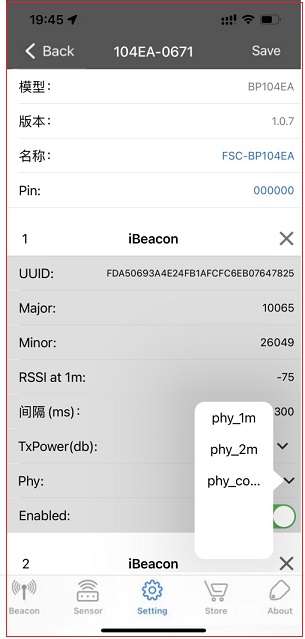
OTA Upgrade
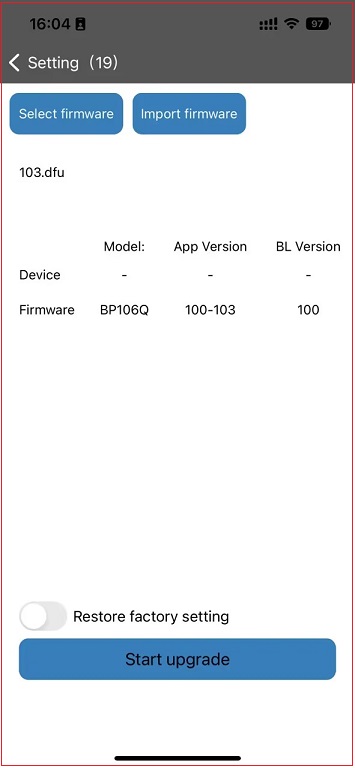
Enter the APP settings interface - click the “Upgrade” button - enter the upgrade interface - click the firmware or fill in the path to download the firmware - click “Start Upgrade” - wait until the interface progress reaches 100%, which means that the upgrade is successful.
Note:
Select firmware: refers to upgrading from a local file, and importing firmware refers to downloading a firmware upgrade from the network server;
The path to download the firmware is provided by Feasycom
Batch Config Such Devices
Enter the APP settings interface
Click the “Batch Configuration of Such Devices” button.
Enter the “Batch Configuration Information” interface.
Check the corresponding information.
Click “Start”.
Select the device that needs to be configured in bulk.
Click “Start”
Click the “Generate Report” button to generate a spreadsheet in the corresponding path and support export.
Note:
Users can configure parameters for multiple modules in batches and export the results in tabular form

Reset Device
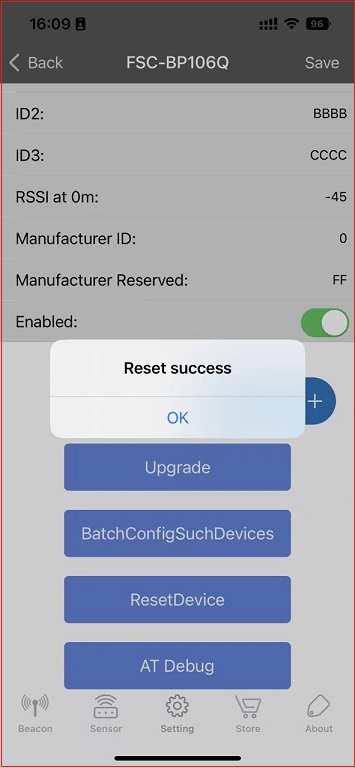
Enter the APP settings interface.
Click the “Reset Device” button.
Restore to the default parameters.
Note:
Click the reset device button to restore the default parameters, please choose carefully!
OTA AT Command
Enter the APP setting interface.
Click the “AT Command Debugging” button.
Enter the AT command interface.
Enter the instructions supported by the module.
click the “communication_send” button.
Return the corresponding parameters.
Note:
The user can enter this interface and send AT commands to operate the module.

Store
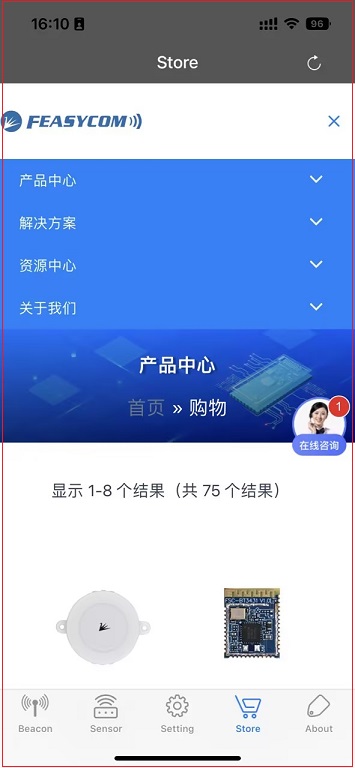
This interface can see the relevant introduction of the company’s products and quickly understand the desired products and needs through online consultation.
About
This interface can see the relevant introduction of the company’s products and quickly understand the desired products and needs through online consultation.
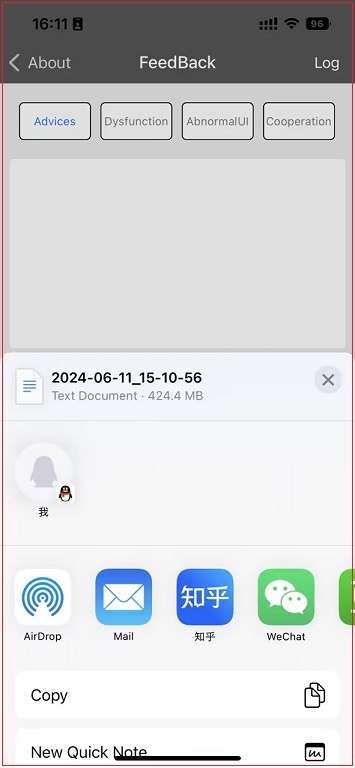
After the user feedback suggestions, abnormal functions and interfaces, cooperation and other information, there will be after-sales personnel to contact you in time, in addition, when the feedback is abnormal, you can click the “log” button in the upper right corner to send the relevant information to the engineer.
FAQS
Q:Whether the upgrade feature in FeasyBeacon can upgrade all beacon products of Feasycom?
A:No, some beacon devices cannot be upgraded via FeasyBeacon.
Q:What does RSSI at 0/1m mean?
A:The 1 meter RSSI of iBeacon and the 0 meter RSSI of Eddystone are useful for RSSI distance calibration, and it is necessary to use these values if you want to use RSSI for calibration.
Q:What do PHY code, PHY_1M, and PHY_2M mean?
A:PHY code refers to physical layer encoding, which helps to realize the transmission and reception of data; PHY_1M refers to a physical layer interface or transmission rate of 1 megabit per second (1Mbps); PHY_2M refers to a physical layer interface or transmission rate of 2 megabits per second (2Mbps). It can be set on a case-by-case basis.
Q:How do I get a Decrypt?
A:Taking BP106Q as an example, after entering the correct key, you can see the information related to 106Q on the sensor interface. The user can go to “AT Command Debugging”, enter AT+PASSWORD to get the key, copy and paste the key into the input box - click “OK”.
Appendix
Download PDF
FeasyBeacon User Guide (PDF)