Firmware Upgrade
OTA Upgrade
Tool
User Guide
1.Download and install the SUOTA App. After successful installation, the local mobile phone will automatically create a Suota Folder.
2.Store the firmware update file (.img file, provided by Feasycom) that needs to be updated in the Suota Folder automatically created by the SUOTA App. The App will automatically recognize the firmware update files in this folder.
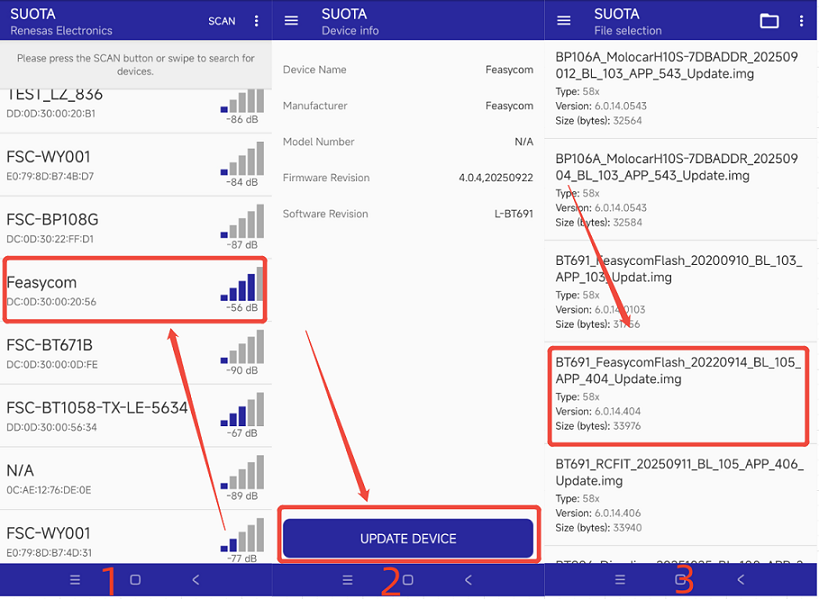
3.Open the SUOTA App, tap the SCAN button to scan for and connect to the target Bluetooth device (e.g., Feasycom).
4.On the Device info page, tap UPDATA DEVICE to enter the File selection page.
5.On the File selection page, select and import the firmware update file to be upgraded from the firmware upgrade files detected by the App. After successful import, it will navigate to the Parameter settings page.
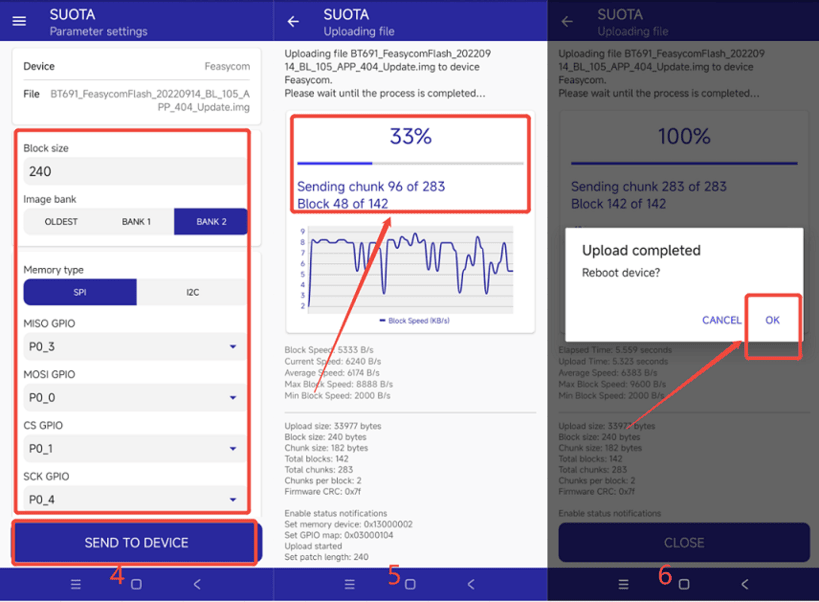
6.On the Parameter settings page, modify the corresponding configurations according to the configuration parameters in Operation Diagram 4 below. After completion, tap the SEND TO DEVICE button to send the settings to the module and enter the update mode.
7.If the Uploading file page displays the update progress, it indicates that the update mode has been entered and the update has started.
8.When Uploading file page displayed Upload Completed , it indicates that the update is finished. Tap “OK” and reboot the device.
OTA Upgrade Show