FSC-DB004-PIN User Guide
[Version: 1.0] [中文版]
This guide introduces how to use the FSC-DB004-PIN and provides further information about this development board.
Overview
FSC-DB004-PIN development board supports Arduino Bluetooth connection development. It is compatible with various 13mm×26.9mm stamp 36-pin packaged Bluetooth modules, such as the FSC-BT616, FSC-BT618, FSC-BT826 Series, FSC-BT836 Series, and FSC-BT9101 Series, which are designed for data transmission applications.
Compared with using a single Bluetooth module, the FSC-DB004-PIN development board offers greater convenience and usability for users to quickly test products, thereby saving time during the testing process and ensuring safety.
|
|
|---|---|
FSC-DB004 - Side |
FSC-DB004 - Back |
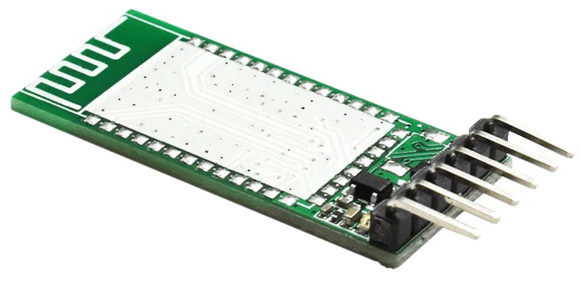
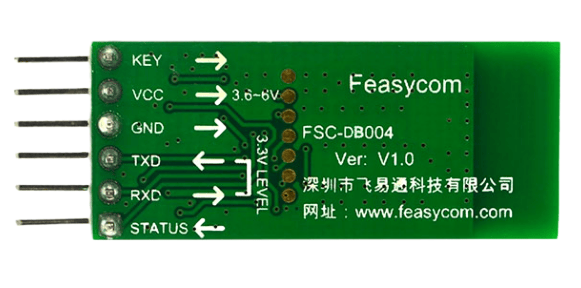
Feature
LED indicators
Key, VCC, GND, TXD, RXD, STATUS pin header expansion
Flexible integration of 13mm×26.9mm stamp 36-pin form factor Bluetooth modules
Flexible connection to other Feasycom USB-to-serial evaluation boards, while compatible with external connection of other evaluation boards
Scope of Application
Applies to :
FSC-BT616
FSC-BT618
FSC-BT826 Series
FSC-BT836 Series
FSC-BT9101AI
…
and other Feasycom Bluetooth modules with 13mm×26.9mm stamp-type 36-pin package, for data transmission communication development.
Functional Components
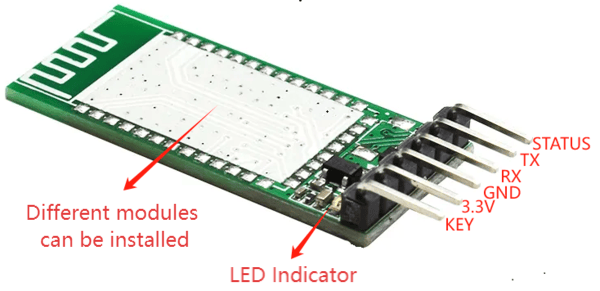
Main Components |
Description |
|---|---|
Module Area |
Bluetooth module placement area, |
LED |
LED light |
VCC |
3.3V power supply |
GND |
GND |
TXD |
UART_TX |
RXD |
UART_RX |
STATUS |
Connection status pin |
What You Need
Take FSC-BT9101AI Bluetooth module as an example:
Required Hardware
1 x Development Board A : FSC-DB004-BT9101AI, FSC-DB004-PIN development board with Feasycom FSC-BT9101AI(optional) Bluetooth dual-mode data transmission module integrated.
1 x Development Board B: FT232RL USB-TTL Serial Converter or select the Feasycom FSC-DB005 USB-TTL Serial Converter, used to connect PC and FSC-DB004-BT9101AI. (Optional)
1 x PC(Windows / Mac)
4 x Dupont Wire Female-to-Female
Software and Setup
Feasycom Serial Port Tool : A serial communication analysis tool based on Windows PC.
FeasyBlue App : Feasycom APP & SDK resource supporting Android and iOS, which enables functions such as Bluetooth BLE & SPP data communication test, Feasycom module firmware version reading, firmware OTA upgrade, OTA command, parameter configuration, etc.
Communication Interface : UART
UART Configuration: 115200/8/N/1 (Feasycom general firmware default)
Hardware Access
Power-on
3V3 / GND pin power supply
Hardware Access Note
Before powering on, ensure the development board is intact and all components are secure without looseness or shorts;
Development Board A (FSC-DB004-BT9101AI) and Development Board B (USB-TTL Serial Converter) are connected via Dupont wires for TXD/RXD/VCC/GND, and Development Board B (USB-TTL Serial Converter) is connected to the PC via USB;
After power-on, the LED indicator of Development Board A (FSC-DB004-BT9101AI) flashes continuously, indicating that the development board has been successfully powered on and the Bluetooth module has been connected.
Communication Test
1.Power Supply Connection
Connect the intact Development Board A (FSC-DB004-BT9101AI) and Development Board B (USB-TTL Serial Converter) via Dupont wires for TXD/RXD/VCC/GND, and Development Board B (USB-TTL Serial Converter) is connected to the PC via USB.
2.Serial Port Recognition
The PC detects the USB serial device and generates a virtual COMx.
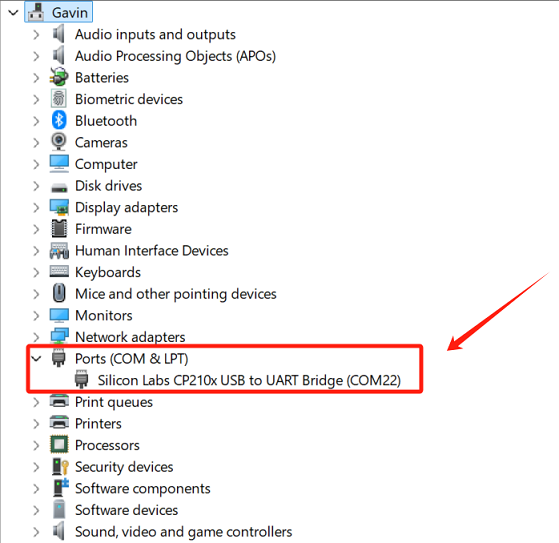
3.UART Communication Test
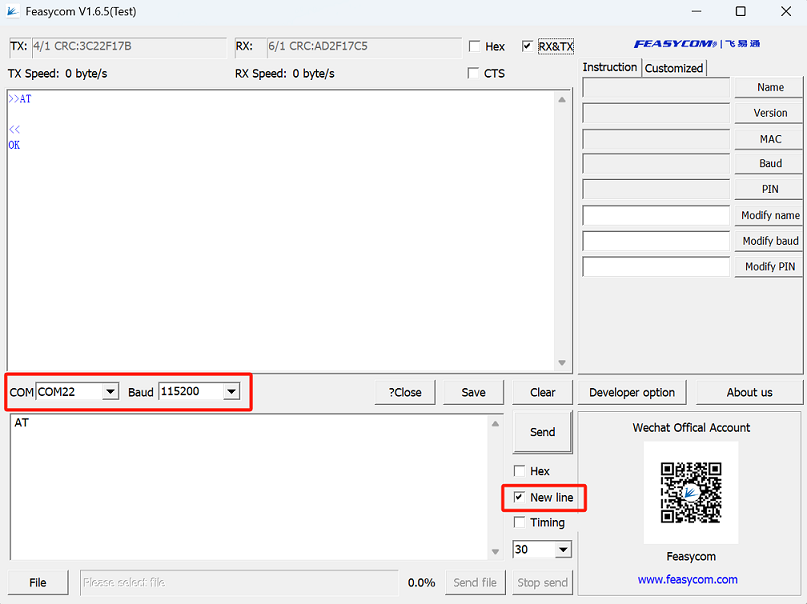
Run the Feasycom Serial Port Tool on the PC, set the correct COM and Baud, and check the New Line.
Send the UART communication test command AT. If the response is OK, it indicates the serial communication test is successful.
Contact Information
Shenzhen Feasycom Co.,Ltd.
Address : Rm 508, Building, Fenghuang Zhigu, NO.50, Tiezai Road, Xixiang, Baoan Dist, Shenzhen, 518100, China.
Telephone : 86-755-23062695
Support : support@feasycom.com
Sales Service : sales@feasycom.com
Home Page : www.feasycom.com
Support Forum : forum.feasycom.com