FSC-DB225 User Guide
[Version: 1.1] [中文版]
This guide will introduce how to use the FSC-DB225 and provide more information about this development board.
Overview
FSC-DB225 is a Feasycom rapid evaluation board designed for use with specific supported Feasycom Bluetooth modules that comply with Bluetooth 5.2 (backward compatible with 2.1 and 3.0) and support simultaneous audio streaming and data transmission over Classic SPP and LE GATT.
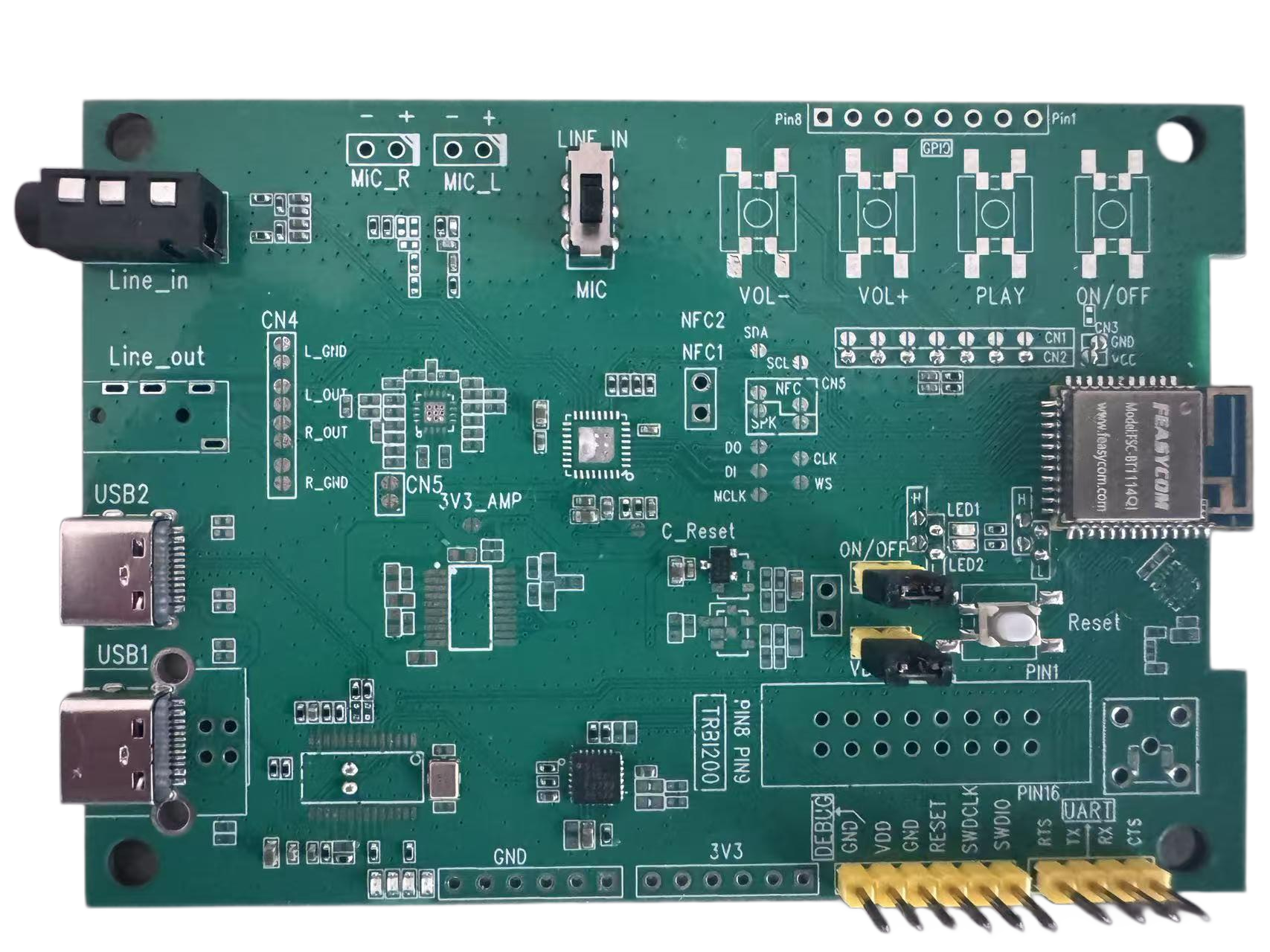
It integrates a variety of functions, including a Type-C interface (supporting UART/USB/power supply), audio input and output, a microphone, function buttons, a reset button, 2.54mm pin headers, and LED status indicators.
It is compatible with Feasycom’s Serial Assistant and AT commands for function testing, enabling developers to familiarize themselves with Feasycom’s products more quickly, accelerate development, and improve efficiency.
|
|
|---|---|
FSC-DB225 with FSC-BT1114QI module - Front |
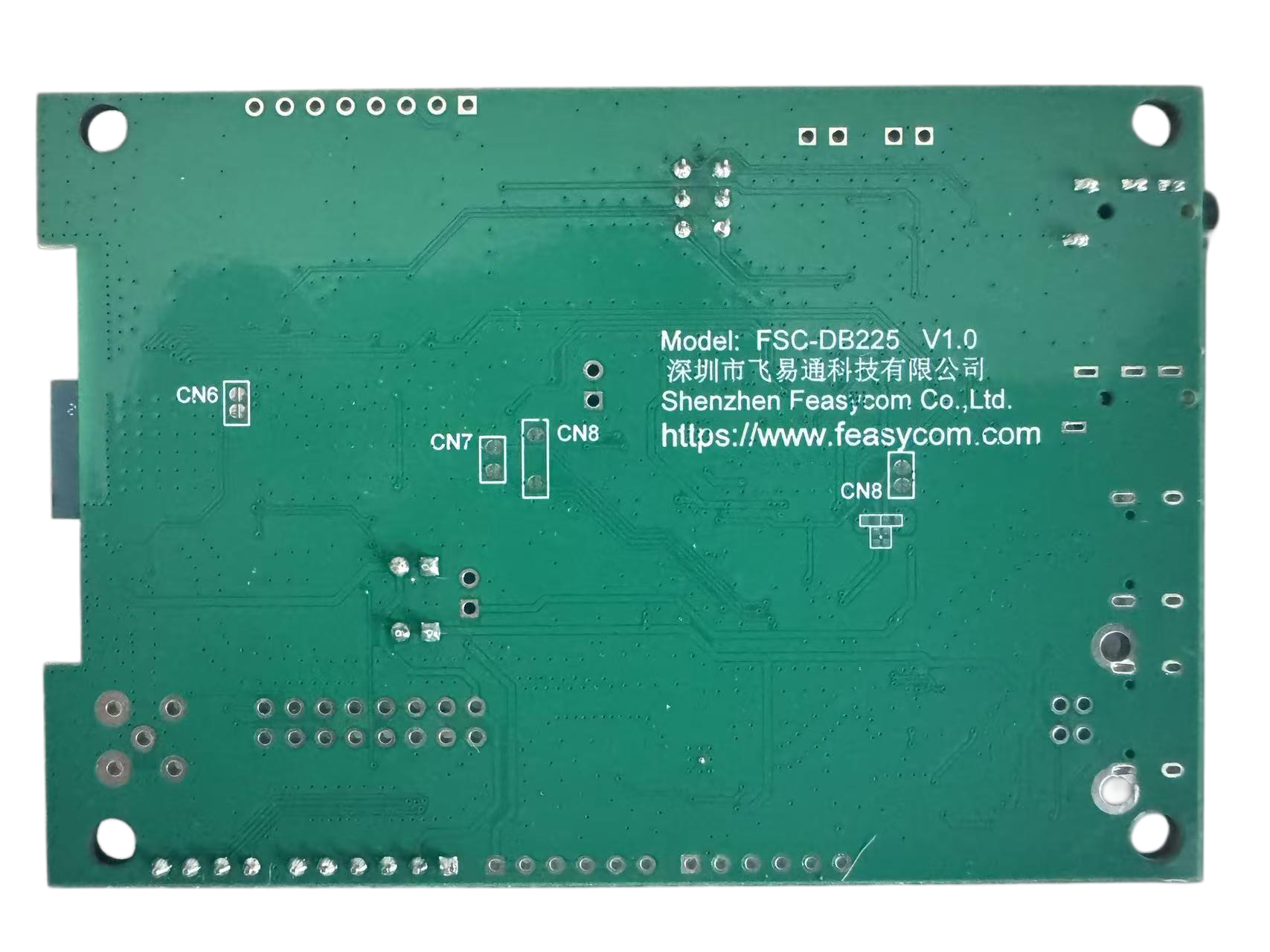
FSC-DB225 with FSC-BT1114QI module - Back |
Scope of Application
Applies to :
FSC-BT1114QI
…
and other Feasycom Bluetooth audio modules for application development
Functional Components
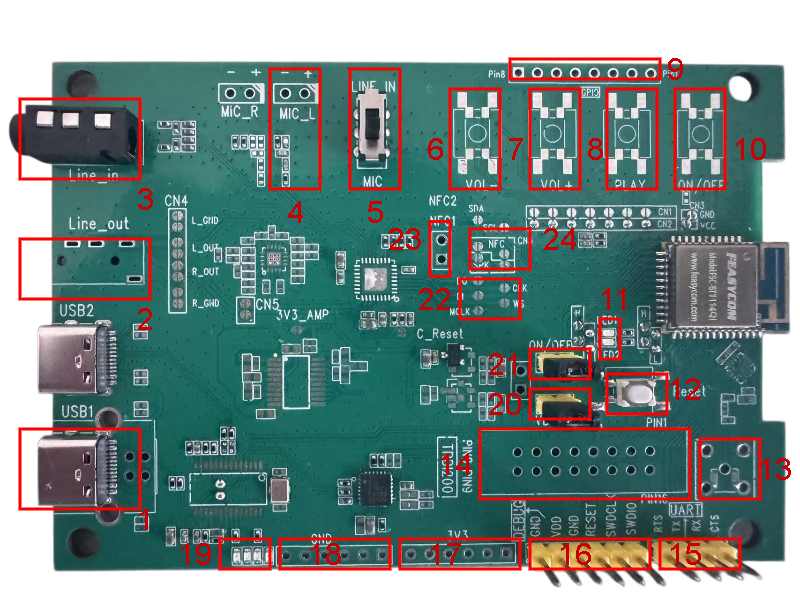
No. |
Components |
Description |
|---|---|---|
1 |
Type-C |
Power/Communicate with/Charge the battery via the module. |
2 |
Line_out |
Standard 3.5mm headphone output, capable of driving 16/32-ohm speakers, with a maximum of 60mW. |
3 |
Line_in |
Standard 3.5mm Audio interface. |
4 |
MIC_L/MIC_R |
HFP (used for incoming and outgoing calls, defaulting to the L channel) and applications requiring a microphone. |
5 |
Line in/MIC Switching |
Audio Input and Microphone Input Selection. |
6 |
VOL - |
Short press to decrease volume. |
7 |
VOL + |
Short press to increase volume. |
8 |
Play/Pause Button |
Music Play/Pause Button. |
9 |
Expansion Pin |
PIN1 - PIN8 Expansion Pins. |
10 |
ON/OFF |
Long press to power on/off. |
11 |
Module Status LED |
LED1: Green Light. |
12 |
Reset |
Short press to reset the module. |
13 |
SMA or IPEX External Antenna Expansion |
Switch to the external antenna. |
14 |
TRBI1200 |
The interface of the TRBI200 programmer, empty by default. |
15 |
UART Expansion |
Serial Port Expansion Pins. |
16 |
Debug and Download |
Expansion pins for reset, download, debug,etc. |
17 |
3V3 |
3V3 |
18 |
GND |
GND |
19 |
USB Communication LED |
Indicator lights for USB1-4 port working status. |
20 |
VBUS |
When the module inputs audio signals via USB, jumper connection is required. |
21 |
3V3 power supply |
3.3V power supply short - circuit enablement. |
22 |
I2S Test Point |
Reserved I2S test points for external communication testing. |
23 |
NFC |
NFC coil soldering pads (NFC functionality is available in some modules). |
24 |
NFC and SPK Switching |
NFC and SPK jumper selection. |
What You Need
Required Hardware
1 x FSC-DB225-BT1114QI
1 x FSC-DB215-BT631D or other BIS sink device
2 x USB-to-Type-C male-to-male data cable
1 x PC(Windows / Mac)
1 x mobile phone or music player
1 x 3.5mm TRS male-to-male auxiliary cable (Optional)
1 x bluetooth speaker or wired audio input bluetooth headset (Optional)
Software and Setup
Serial Driver: CP210x_Universal Driver for Windows PC, generally plug-and-play, install this driver if the PC fails to recognize the device in specific environments.
Feasycom Serial Port Tool : A serial communication analysis tool based on Windows PC.
FeasyBlue :Feasycom APP & SDK resource supporting Android and iOS platforms, which enables functions such as Bluetooth BLE & SPP data communication debugging, Feasycom module firmware version reading, firmware OTA upgrade,parameter configuration, etc.
Communication Interface:UART
Serial Configuration:115200/8/N/1(Feasycom general firmware default)
Hardware Access
Power-on Options
The development board can use either of the following power supply methods:
Type-C power supply (default)
3V3 / GND pin power supply
Note:Do not connect the above power supply modes simultaneously, as this may damage the development board and/or the power supply.
Hardware Access Note
Before power-on, confirm that the development board is intact and that no components are loose or stuck together.
Connect the development board to the PC using a USB-to-Type-C cable.
After power-on, the LEDs on the development board flash, indicating that the module is operational and ready for debugging.
Quick Start
Hardware Access and Start
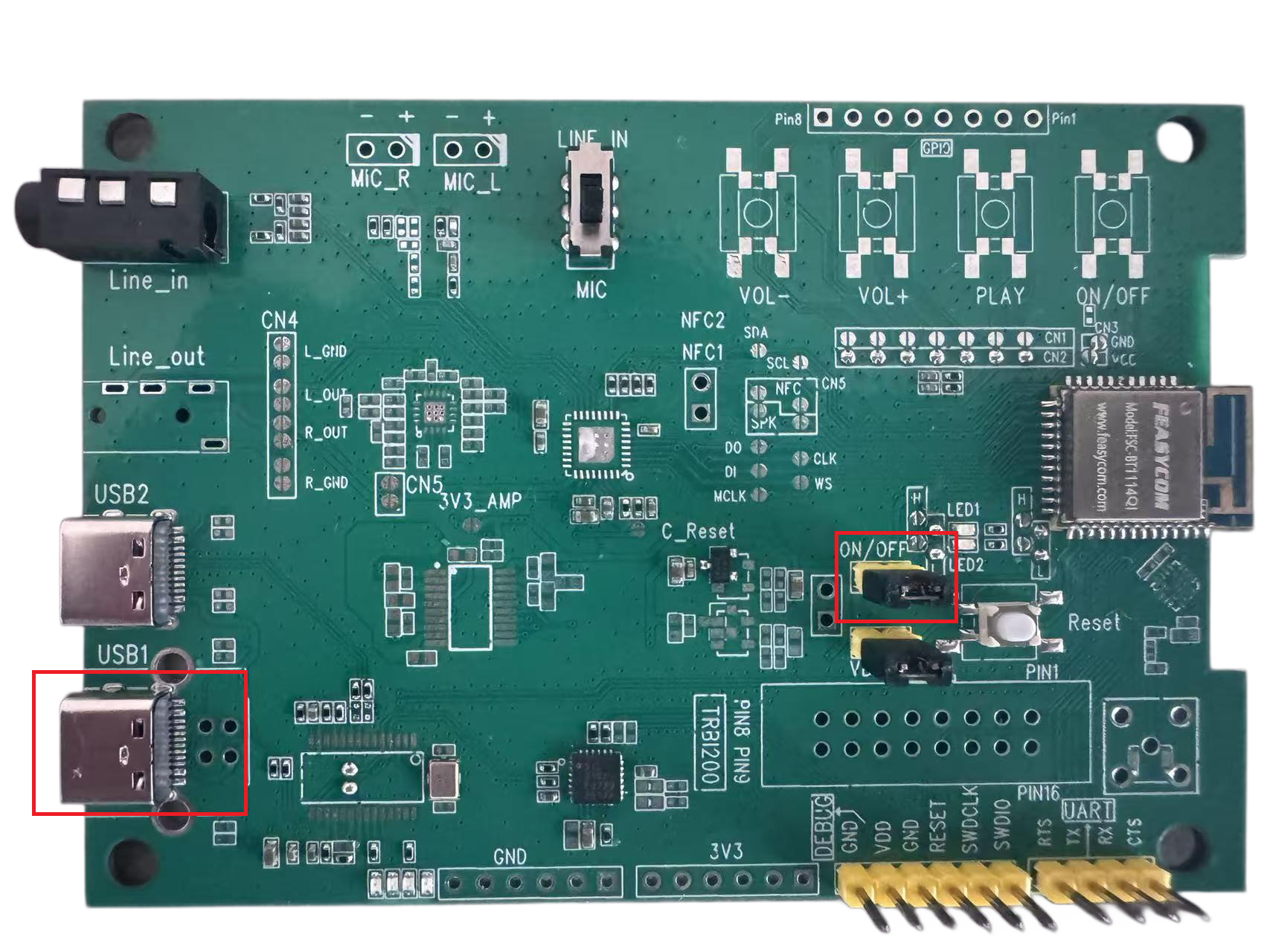
Connect the development board (FSC-DB225-BT1114QI) to your PC with a USB-to-Type-C cable via the Type-C port (component USB1). Set the power switch (component ON/OFF) to the shorted position, when LED1 blinks slowly, the module has started up correctly.
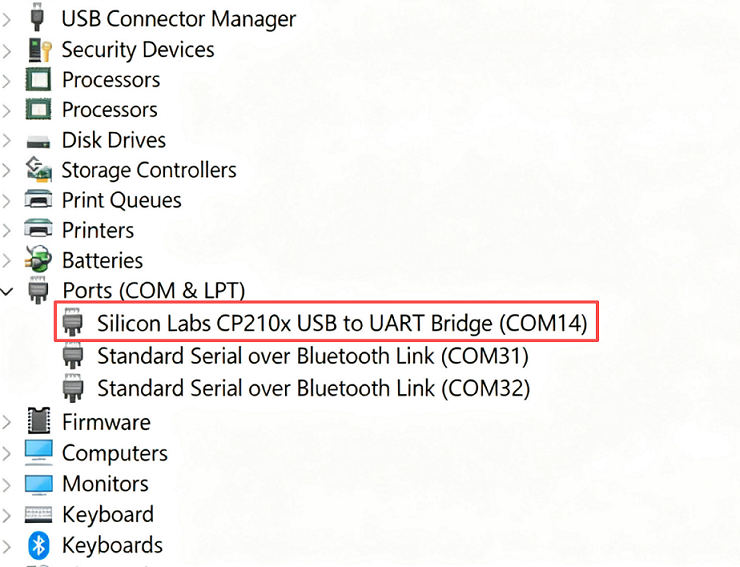
Serial Port Recognition
The device supports plug-and-play (no additional component control required). The PC will recognize the USB serial device and generate a virtual COMx port.
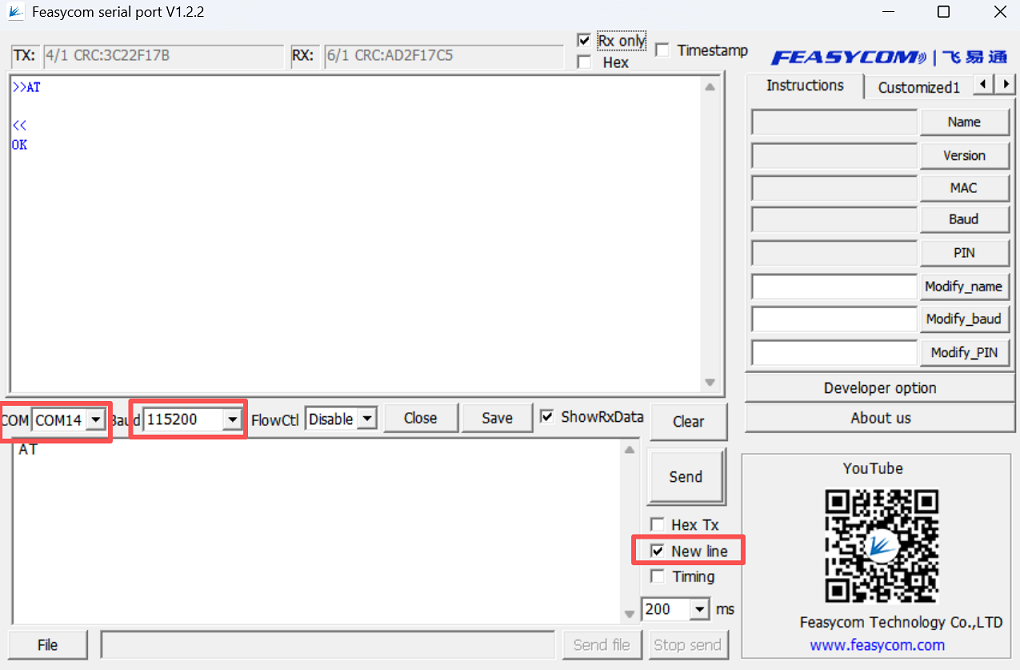
AT - Serial Communication Test
Command |
AT\r\n |
|---|---|
Response |
\r\nOK\r\n |
Description |
Tests UART communication between the host and the module, when power is on or the baud rate is changed. |
Example:
Send:     << AT\r\n
Response: >> \r\nOK\r\n
Application Examples
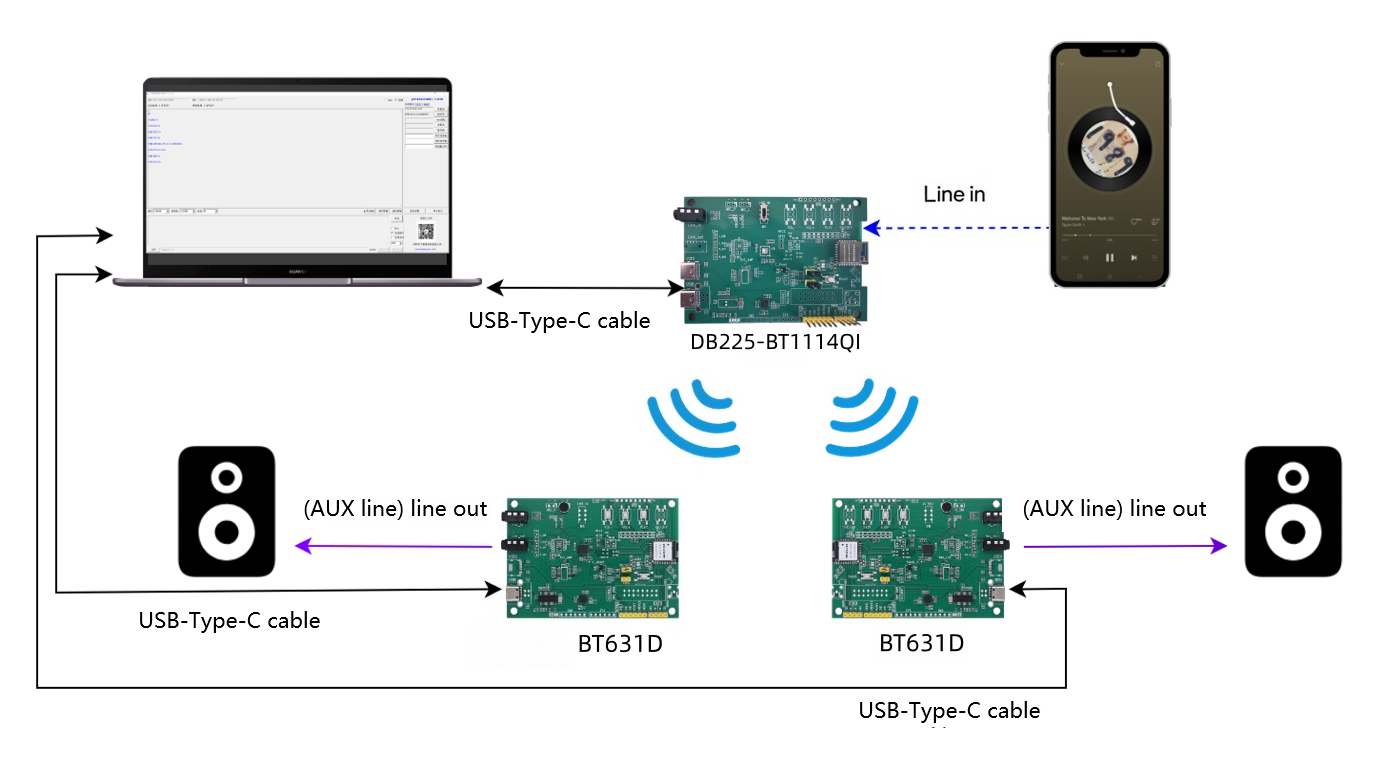
LE Audio BIS(Broadcast Isochronous Stream)Application
Application Diagram
Application Demo
FSC-DB225-BT1114QI:Connect via a Type-C cable to a PC. Upon successful connection, the PC will automatically recognize the serial port device and generate a virtual COMx.
FSC-DB225-BT1114QI:Set the Profile of the Bluetooth module (FSC-BT1114QI) and enable BIS Gateway. The specific AT command operations and responses are as follows:
Send:     >> AT+PROFILE=131412
Response: << OK
Response: << +GATTSTAT=1
Response: << +A2DPSTAT=1
Response: << +AVRCPSTAT=1
Response: << +HFPSTAT=1
Response: << +BISSTAT=1
Response: << +VER=FSC-BT1114QI,V2.0.0,20260114
Response: << +DEVSTAT=7
Response: << +AUDROUTE=1
Response: << +BISSTAT=5
Response: << +BISSR=48000
FSC-DB225-BT1114QI:The development board supports configuration into three audio input modes (USB, lineIn, and I2S) via AT commands. Here we demonstrate the Linein audio input mode, the AT command configuration operations as follows:
Send:     >> AT+AUXCFG=1    //Enable LineIn audio input mode
Response: << OK
FSC-DB215-BT631D :Connect via a Type-C cable to a PC. Upon successful connection, the PC will automatically recognize the serial port device and generate a virtual COMx. Connect the LineOut component on the development board to an external audio device (such as wired headphones or speakers) using an AUX cable at the same time.
FSC-DB215-BT631D:Set the Profile of the corresponding Bluetooth module FSC-BT1114QI and enable BIS Headset. The AT command operations and responses are as follows:
Send:     >> AT+PROFILE=16384            //Enable BIS Headset Profile
Response: << OK
Response: << +BISSTAT=1
Response: << +DEVSTAT=0
Response: << +PWRSTAT=1
Response: << +VER=BT631D,V3.0.9,20250306
Response: << +PROFILE=16384
Response: << +DEVSTAT=1
Response: << +DEVSTAT=3
FSC-DB215-BT631D:Establish BIS audio connection with the specified BIS Gateway device. The AT command operations and responses are as follows:
Send:     >> AT+SCAN=4        //Scan for nearby BIS/CIS device broadcast source
Response: << +DEVSTAT=67
Response: << OK
Response: << +SCAN=0,-39,5,DE0D3000187D,FSC-BT1114QI-185D,885
...
...
Response: << +SCAN=E            //Scan Completed
Response: << +DEVSTAT=3
Send:     >> AT+BISCONN=FSC-BT1114QI-185D     //Initiate LE audio BIS connection with specified device by BIS Gateway name.
Response: << +BISSTAT=2                 //Establishing BIS connection
Response: << OK
Response: << +DEVSTAT=65
Response: << +BISSTAT=5                //Established BIS connection and receiving BIS data
FSC-DB225-BT1114QI:Connect the LineIn port to a computer or other audio device, and then play the audio.
FSC-DB215-BT631D:Receive the BIS broadcast audio stream from the DB225 side (BIS Gateway), and simultaneously output the audio stream to the external audio device through the development board’s LineOut component—meaning the external audio device can synchronously play the audio stream from the mobile phone side.
Expand more devices to receive BIS broadcast audio:The current development board supports an unlimited number of BIS broadcast audio receiving devices (BIS headsets). Simply repeat Steps 4, 5, and 6 for configuration.
Contact Information
Shenzhen Feasycom Co.,Ltd.
Address : Rm 508, Building, Fenghuang Zhigu, NO.50, Tiezai Road, Xixiang, Baoan Dist, Shenzhen, 518100, China.
Telephone : 86-755-23062695
Support : support@feasycom.com
Sales Service : sales@feasycom.com
Home Page : www.feasycom.com
Support Forum : forum.feasycom.com