FSC-DB218 User Guide
[Version: 1.0] [中文版]
This guide introduces how to use the FSC-DB218 and provides further information about this development board.
Overview
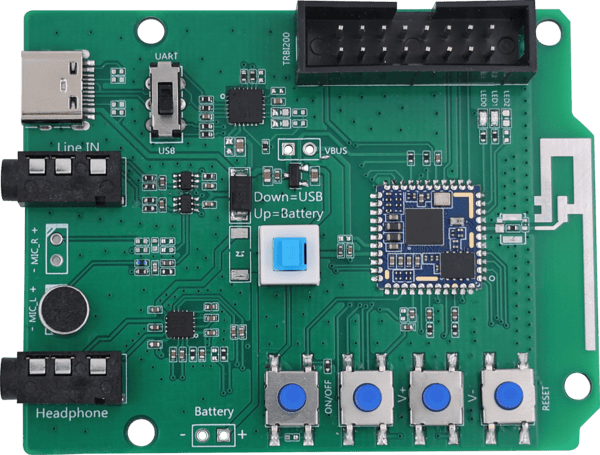
Feasycom FSC-DB218 development board integrates Type-C (including UART/USB/power supply), audio input/output, microphone, lithium battery, buttons, reset button, status indicators, and other components.
It is compatible with Feasycom serial port tool and AT commands for function testing, allowing developers to quickly familiarize themselves with Feasycom’s products, shorten the development cycle, and improve efficiency.
|
|---|
FSC-DB218 - Front |
Scope of Application
Applies to :
and other Feasycom Bluetooth audio modules for application development
Functional Components

序号 |
Component |
Description |
|---|---|---|
1 |
Type-C |
Powers the module. |
2 |
USB/UART Selector |
Dual-mode communication interface selector (UART/USB). |
3 |
Power Selector |
Short (Down): Module powered by Type-C. |
4 |
ON/OFF Button |
Module power control button. |
5 |
V+ Button |
Volume up: short press to increase volume. |
6 |
V- Button |
Volume down: short press to decrease volume. |
7 |
Reset Button |
Module reset button: short press to reset the module. |
8 |
MIC |
Microphone audio input. |
9 |
Line IN |
Analog audio input, standard 3.5mm audio interface. |
10 |
Headphone |
Analog audio output (SPK out). |
11 |
VBUS |
Battery charging/module upgrade. |
12 |
Battery |
Lithium battery interface. |
13 |
TRBI200 |
TRBI200 programmer interface (empty by default). |
14 |
Module Area |
Example : FSC-BT1046 Bluetooth audio module. |
15 |
Antenna |
On-board external antenna for the module. |
16 |
LED |
LED0 fast flashing: pairing mode. |
What You Need
Take FSC-DB218 with FSC-BT1046 an example:
Required Hardware
1 x FSC-DB218-BT1046 : FSC-DB218 development board with Feasycom FSC-BT1046 (optional) Bluetooth audio module integrated.
1 x USB to Type-C data cable
1 x PC(Windows / Mac)
1 x Phone or music player
1 x 3.5mm AUX Male-to-Male audio cable (optional)
1 x Bluetooth speaker or wired audio input Bluetooth speaker (optional)
Software and Setup
Serial Driver: CP210x Universal Driver for Windows PC, generally plug-and-play, install this driver if the PC fails to recognize the device in specific environments.
Feasycom Serial Port Tool : A serial communication analysis tool based on Windows PC.
FeasyBlue App :Feasycom APP & SDK resource supporting Android and iOS, which enables functions such as Bluetooth BLE & SPP data communication debugging, Feasycom module firmware version reading, OTA upgrade, OTA command, parameter configuration, etc.
Communication Interface : UART
UART Configuration: 115200/8/N/1 (Feasycom general firmware default)
Hardware Access
Power-on Options
Type-C power supply (default)
3V3 / GND pin power supply
Note : The above power supply modes must not be connected simultaneously, as this may damage the development board and/or the power source.
Hardware Access Note
Before powering on, ensure the development board is intact and all components are secure without looseness or shorts.
Development board connects to a PC via a USB to Type-C cable.
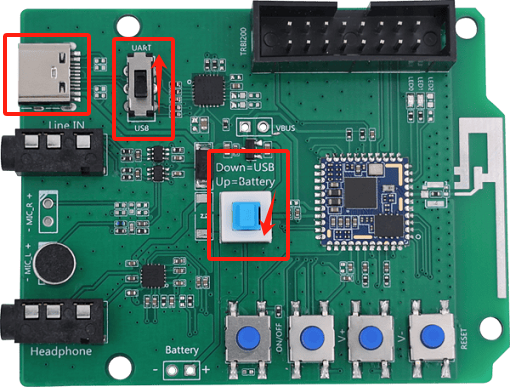
Select the communication mode using the USB/UART Communication Selector (Component 2): Choose UART mode for USB power supply & UART serial communication, or USB mode for USB power supply & USB port communication.
Set the Power Selection Switch (Component 3) to the down position to switch to USB power supply mode.
After powering on, the LED lights up steadily, indicating the board is powered normally and ready for debugging.
Get Start
Power Supply Connection
Connect the Type-C port (Component 1) of the FSC-DB218-BT1046 development board to the PC via a USB to Type-C cable.
Set the USB/UART Communication Selector (Component 2) to UART mode and the Power Selection Switch (Component 3) to the down position for USB power supply. The LED will light up and flash slowly, indicating the FSC-BT1046 Bluetooth module has started successfully.
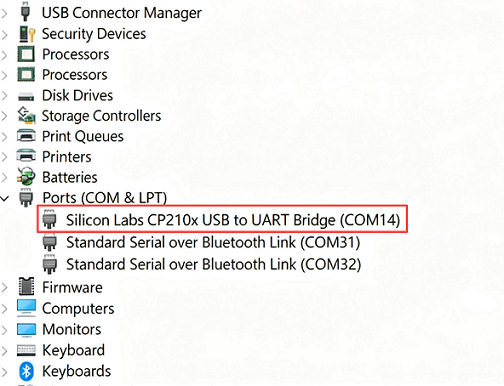
Serial Port Recognition
The PC will automatically recognize the serial port and create a virtual COM port.
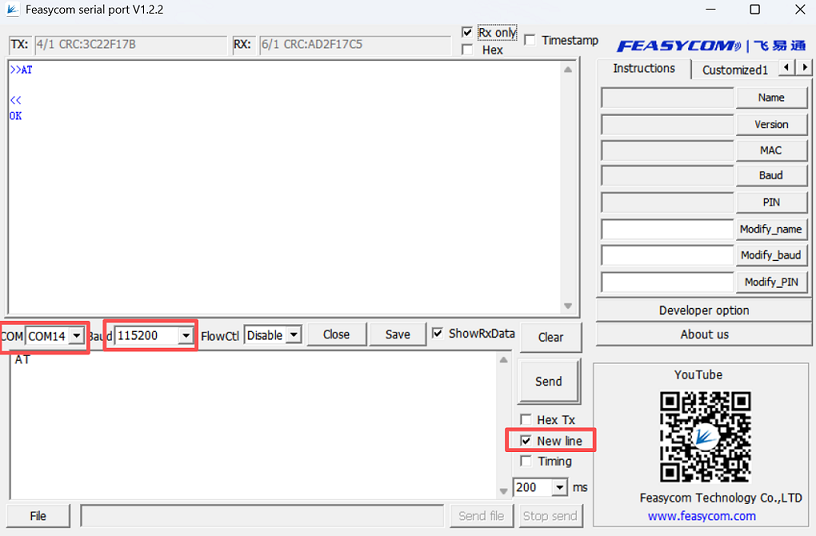
AT - Uart Communication Test
Run the Feasycom Serial Port Tool on the PC, set the correct COM and Baud, and check the New Line.
Send the serial communication test command AT. If it responds with OK, it indicates that the serial communication test is successful. Example:
Command |
AT\r\n |
|---|---|
Response |
\r\nOK\r\n |
Description |
Test the UART communication between HOST and Module after power on, baudrate changed, etc. |
Example:
send:     >>AT\r\n
response: <<\r\nOK\r\n   //Successfully
Application Examples
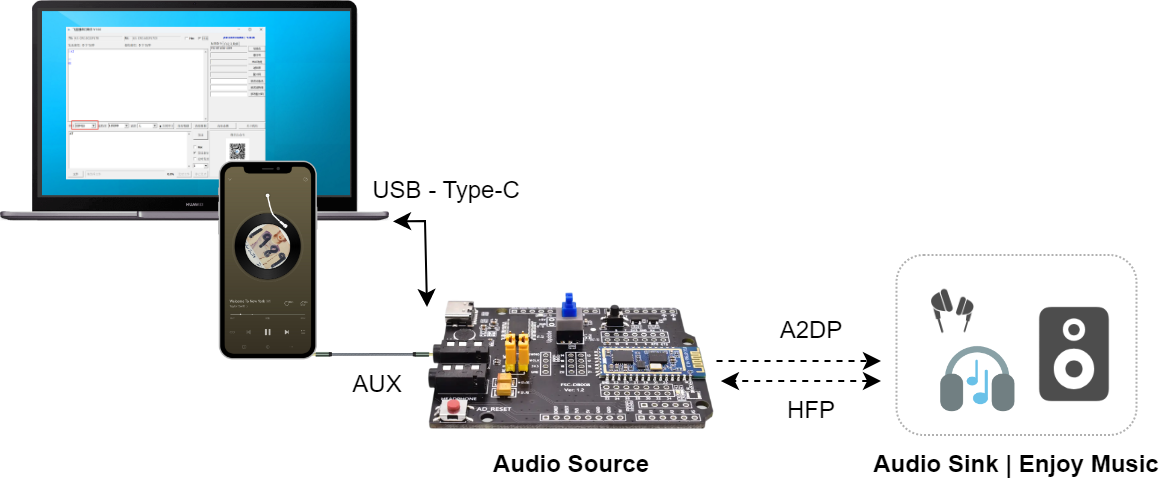
Take FSC-DB218 with FSC-BT1046 an example:
Bluetooth Audio Source Mode
Note: FSC-BT1046 only supports Bluetooth audio source application.
Contact Information
Shenzhen Feasycom Co.,Ltd.
Address : Rm 508, Building, Fenghuang Zhigu, NO.50, Tiezai Road, Xixiang, Baoan Dist, Shenzhen, 518100, China.
Telephone : 86-755-23062695
Support : support@feasycom.com
Sales Service : sales@feasycom.com
Home Page : www.feasycom.com
Support Forum : forum.feasycom.com